Documentation
Getting Started
Installation and Access
Network Configuration
Verification and Maintenance
Bridge Mode: The Gateway Dials Up
If the optical modem is already switched to bridge mode and you have the broadband account and password, follow this page. About 10 minutes.
Choose bridge if the modem can be changed; it also removes the trouble of multi-layer NAT.
Step 1 — Edit the WAN port
Open 网络(Network)→ 接口(Interfaces) and click 编辑(Edit) on the right of the WAN port.
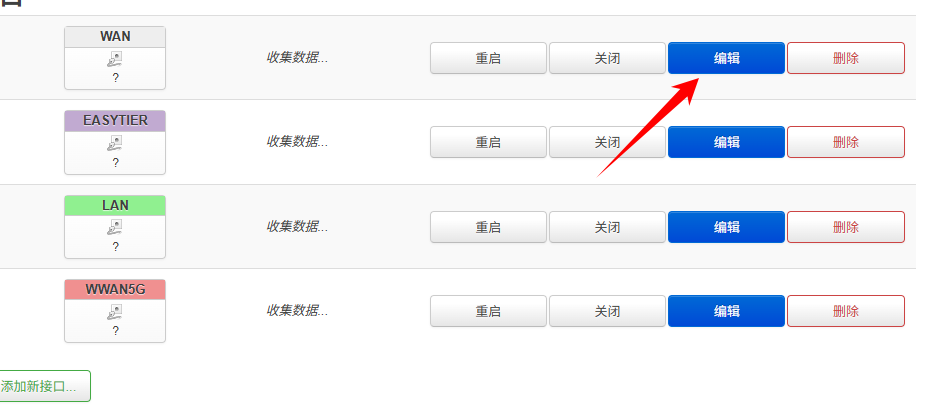
Figure: the 编辑(Edit) button in the WAN port row.
Step 2 — Switch the protocol to PPPoE
Select PPPoE in the protocol drop-down, then click 确认切换协议(Confirm protocol switch).
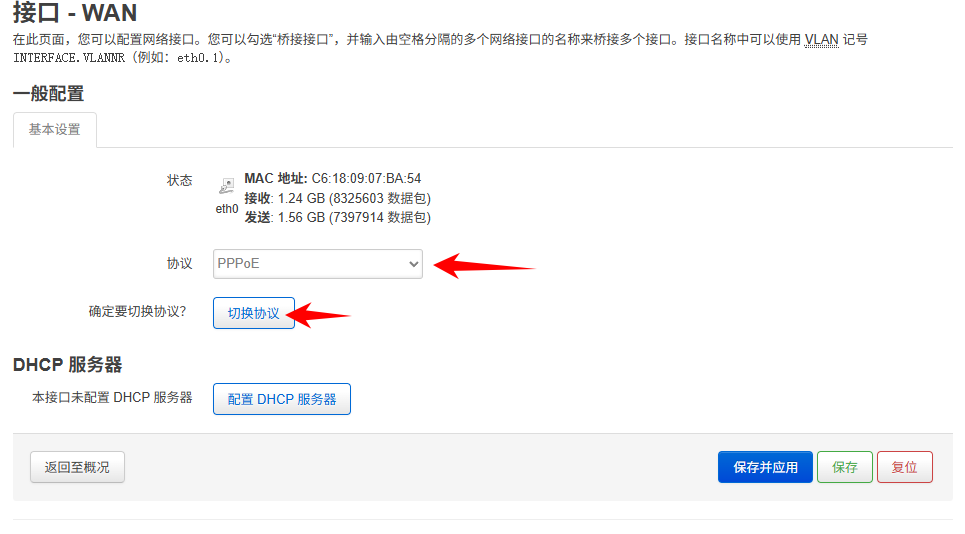
Figure: the switch confirmation after selecting PPPoE in the protocol drop-down.
Step 3 — Enter the broadband account and password
Enter the broadband dial-up account and password from the carrier.
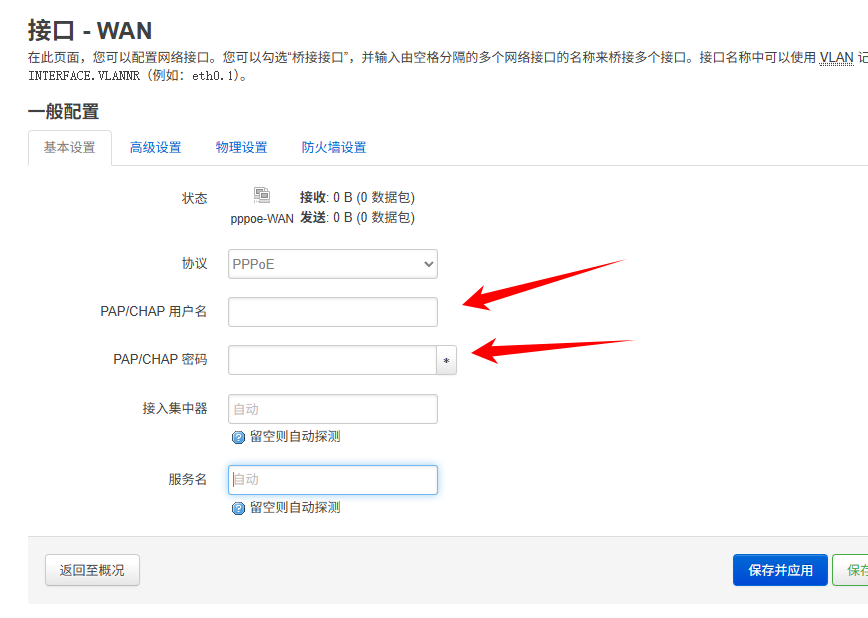
Figure: the two PPPoE fields, account and password.
Step 4 — Set the LAN port to a static IP
Click 配置 LAN(Configure LAN) and select 静态地址(Static address). Fill in only the IP address and the subnet mask; leave everything else empty.

Figure: the 配置 LAN(Configure LAN) entry.
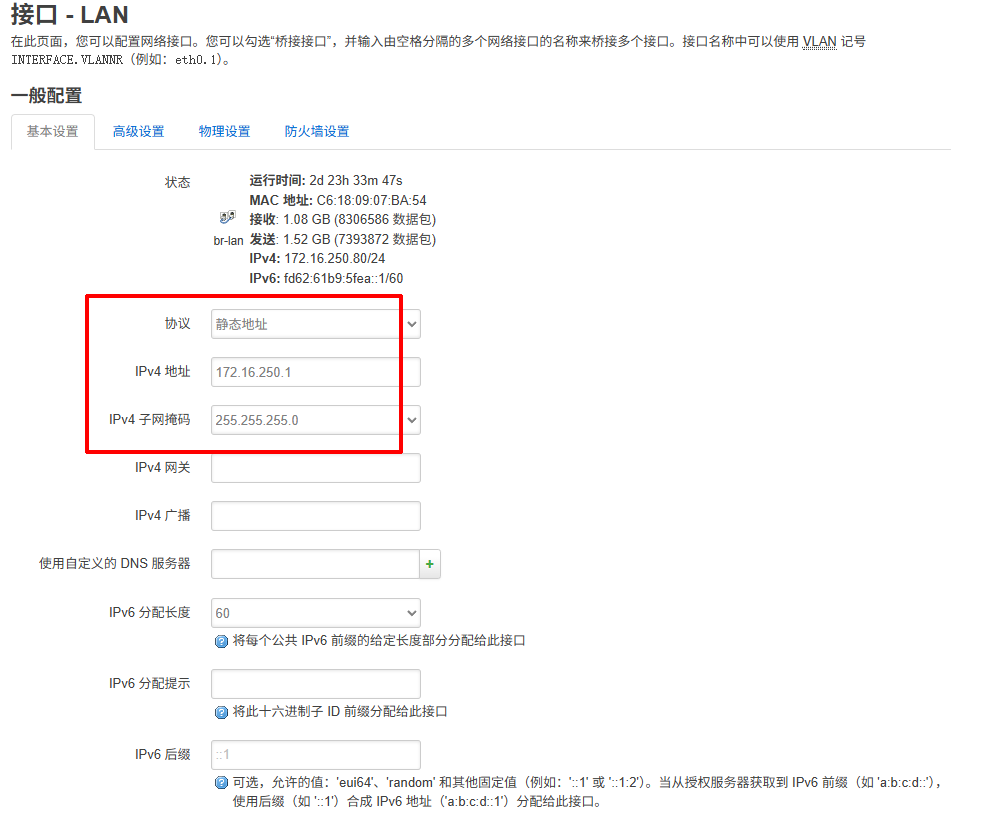
Figure: the LAN port form; only the IP address and subnet mask fields should be filled.
Leave the gateway and DNS fields empty. Filling them in stops internet access.
Step 5 — Enable DHCP on the LAN port
Turn on the DHCP service on the LAN port so devices below it get an address.
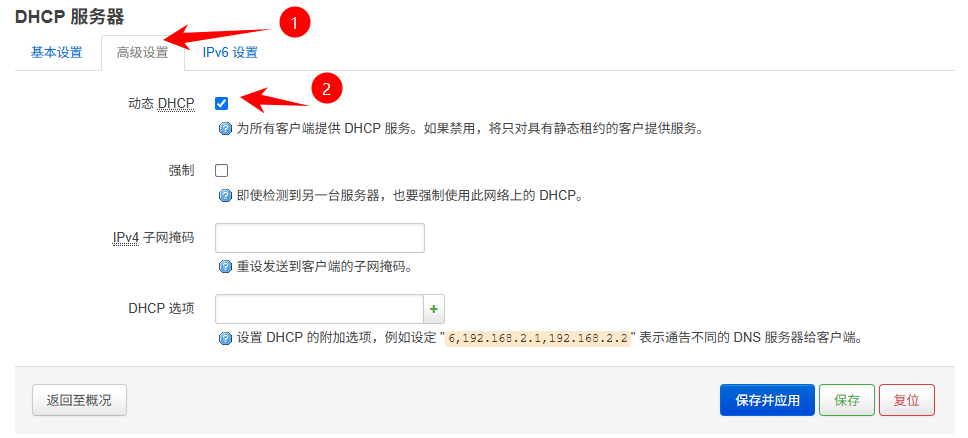
Figure: the enable switch for the LAN port DHCP service.
Step 6 — Click 应用配置(Apply configuration)
Click 应用配置(Apply configuration) to save and wait for the page to refresh.

Figure: where the 应用配置(Apply configuration) button sits.
- The WAN port status shows connected and has an IP address
- A computer on the LAN port can open external web pages
Was this page helpful?A one-line note helps us make these steps more accurate.