Documentation
Getting Started
Installation and Access
Network Configuration
Verification and Maintenance
Access Control: Which Traffic to Allow
This page settles which of the two directions to select, so you neither over-open nor miss anything.
Access control appears in two places. Check both.
| Place | Path |
|---|---|
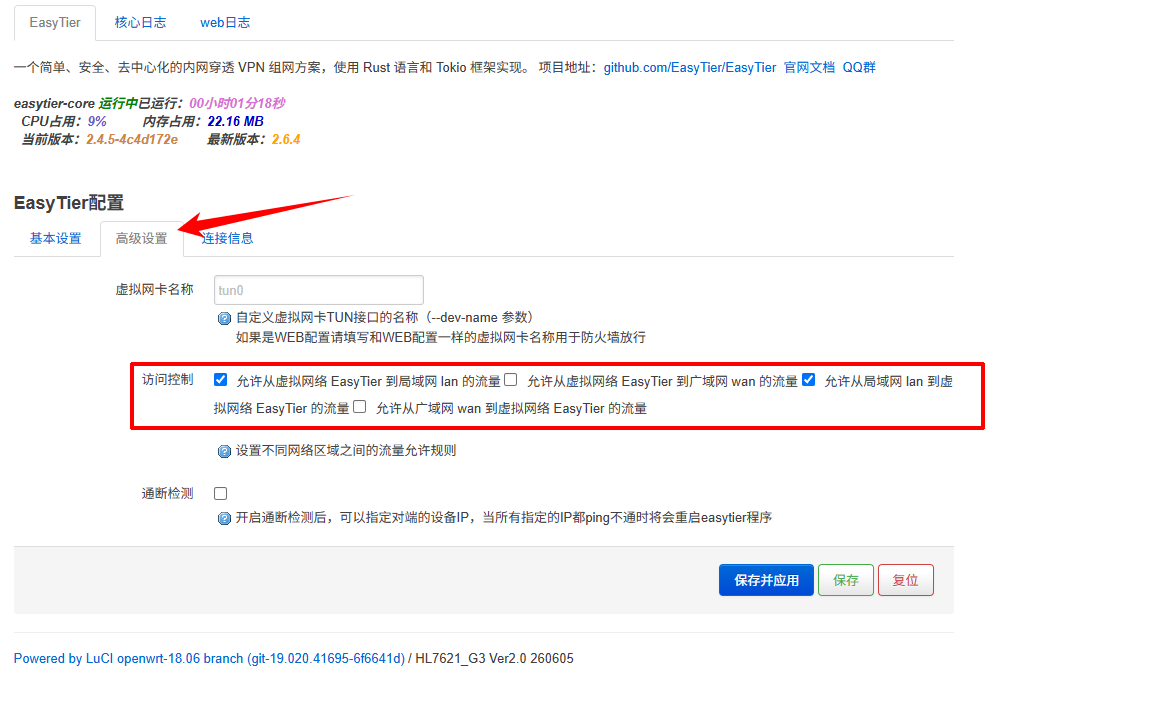
| Gateway admin page | 服务(Services) → EasyTier → 高级配置(Advanced configuration) → 访问控制(Access control) |
| Networking platform | Network management page → 访问控制(Access control) |
Whether the two places hold the same rule set, and which one takes precedence: pending (to be filled in by the content provider).
Steps
Step 1 — Confirm the two directions to select
| Direction | Selected | Effect |
|---|---|---|
| Virtual network EasyTier → LAN | Yes | The peer site can reach devices at this site |
| LAN → virtual network EasyTier | Yes | This site can reach devices at the peer site |
In most cases these two are enough.
Other direction options on the page: pending (to be filled in by the content provider).
Step 2 — Select them in the gateway admin page
Open 服务(Services) → EasyTier → 高级配置(Advanced configuration).
Find 访问控制(Access control) and select both directions above.
Step 3 — Check again on the platform side
Open the network management page and click 访问控制(Access control).
Select the same two directions from the table above.
On site this shows up as: ping works, but web pages or surveillance do not open. Select both directions before saving.
Start with the two directions to keep the business working. After acceptance, tighten them to what the business needs; do not leave everything open long term. For risk levels, see Safe use and operation risk levels.
- Both directions are selected.
- Saving reports no error.
Was this page helpful?A one-line note helps us make these steps more accurate.