Documentation
Getting Started
Installation and Access
Network Configuration
Verification and Maintenance
Connecting the Gateway to the Platform (Gateway Online)
This page makes the gateway appear in the platform's device list with a status of Online.
- The gateway is configured, and a computer connected below it can open web pages.
- You have registered a platform account and remember the account name.
Steps
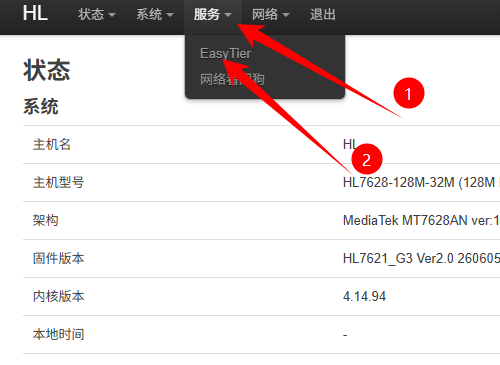
Step 1 — Open the networking service settings
Sign in to the gateway admin page and click 服务(Services) → EasyTier in the top navigation.
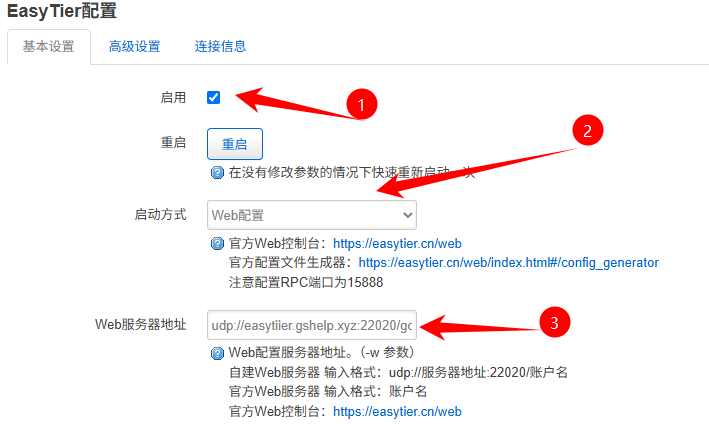
Step 2 — Select 启用(Enable)
On the EasyTier page, select 启用(Enable).
Step 3 — Fill in four fields
Fill them in from the table; all four must be right.
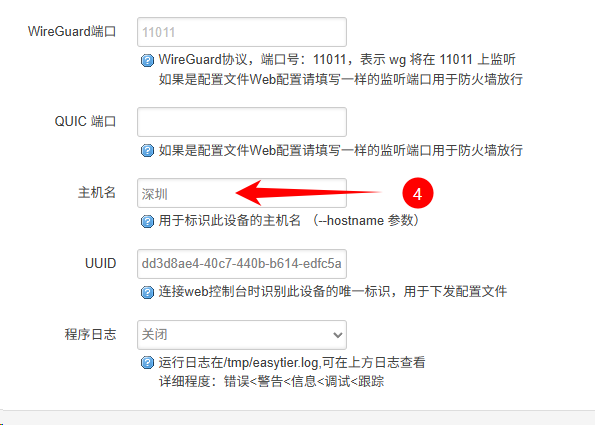
| Field | What to enter |
|---|---|
| 启用(Enable) | Selected |
| 启动方式(Start method) | Select web 配置(Web configuration) |
| web 服务器地址(Web server address) | udp://easytier.gshelp.xyz:22020/accountname, replacing accountname with the platform account |
| 主机名(Hostname) | The site location name, for example Central Street store |
Step 4 — Select both access control directions
Click 高级配置(Advanced configuration) and find 访问控制(Access control).
Select 允许从虚拟网络 EasyTier 到局域网 LAN 的流量(Allow traffic from the EasyTier virtual network to the LAN).
Select 允许从局域网 LAN 到虚拟网络 EasyTier 的流量(Allow traffic from the LAN to the EasyTier virtual network).
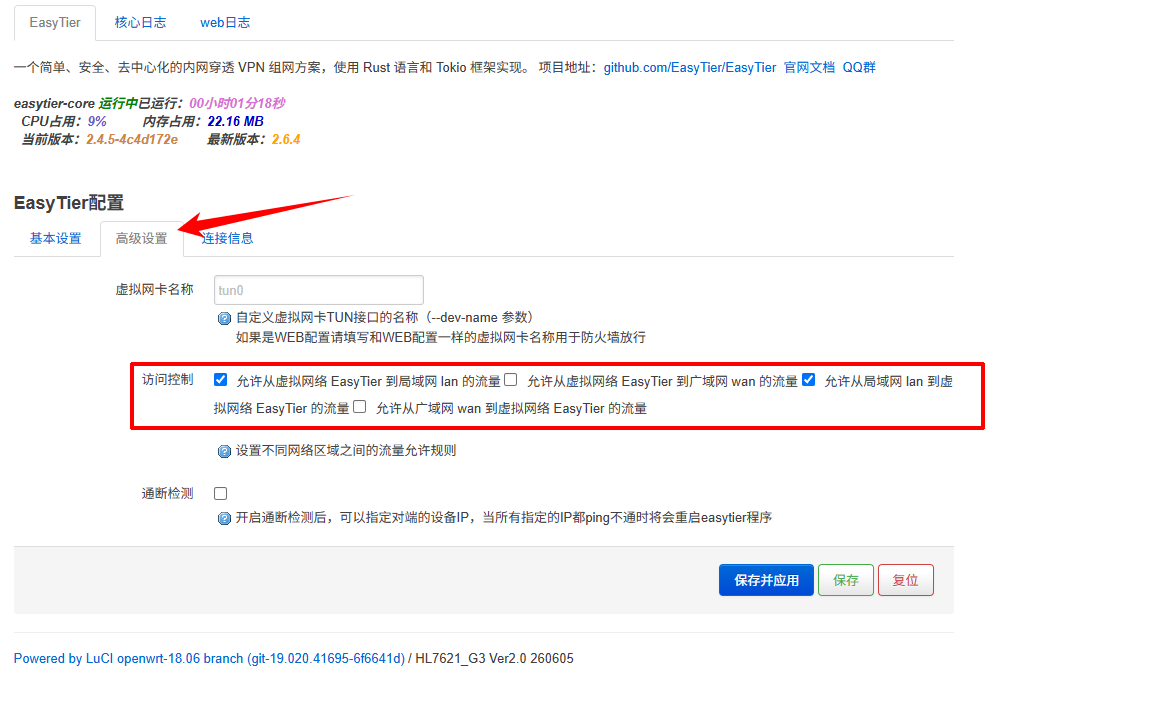
For what each direction does and its exceptions, see Access control.
The udp:// prefix, the :22020 port, and the account name after the slash.
The account name must match the platform registration exactly.
If any one of them is wrong, the device does not come online.
- This gateway appears in the platform's 设备(Devices) list.
- The status is 在线(Online); this may take 1–2 minutes.
With many sites, the platform fills up with devices of the same name and you cannot tell them apart when troubleshooting.
Was this page helpful?A one-line note helps us make these steps more accurate.