Documentation
Getting Started
Devices and Assets
Publishing and Display
Scenes and Patrol
Management and Settings
Troubleshooting and Support
Other Settings
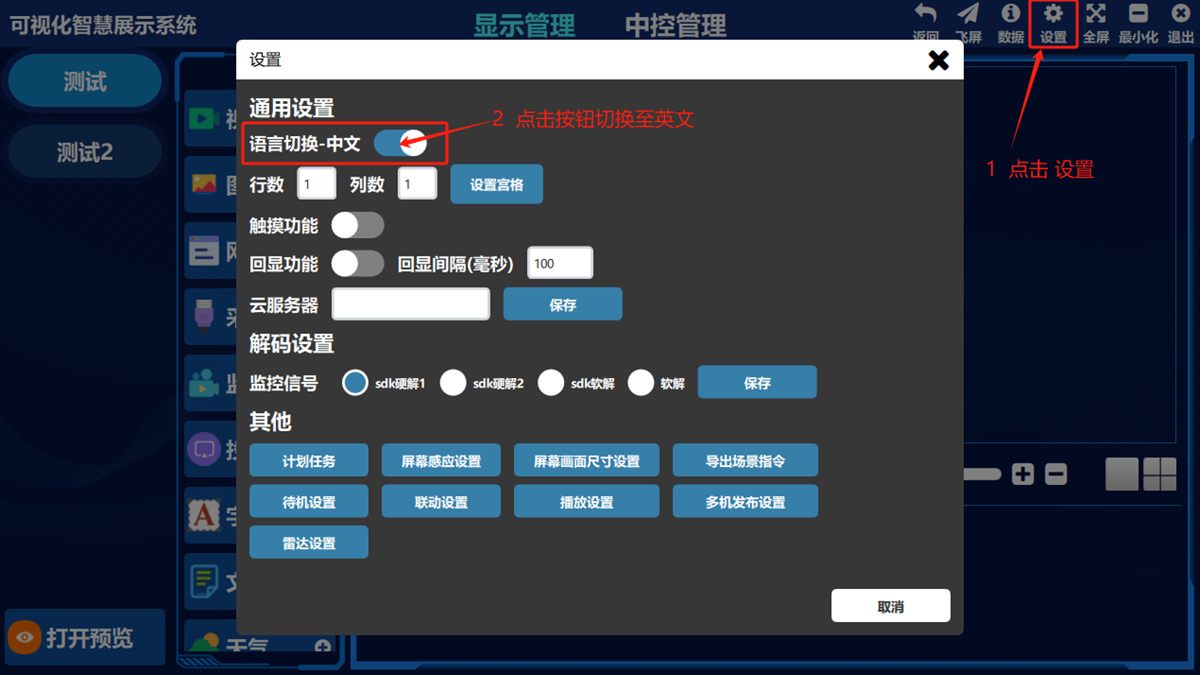
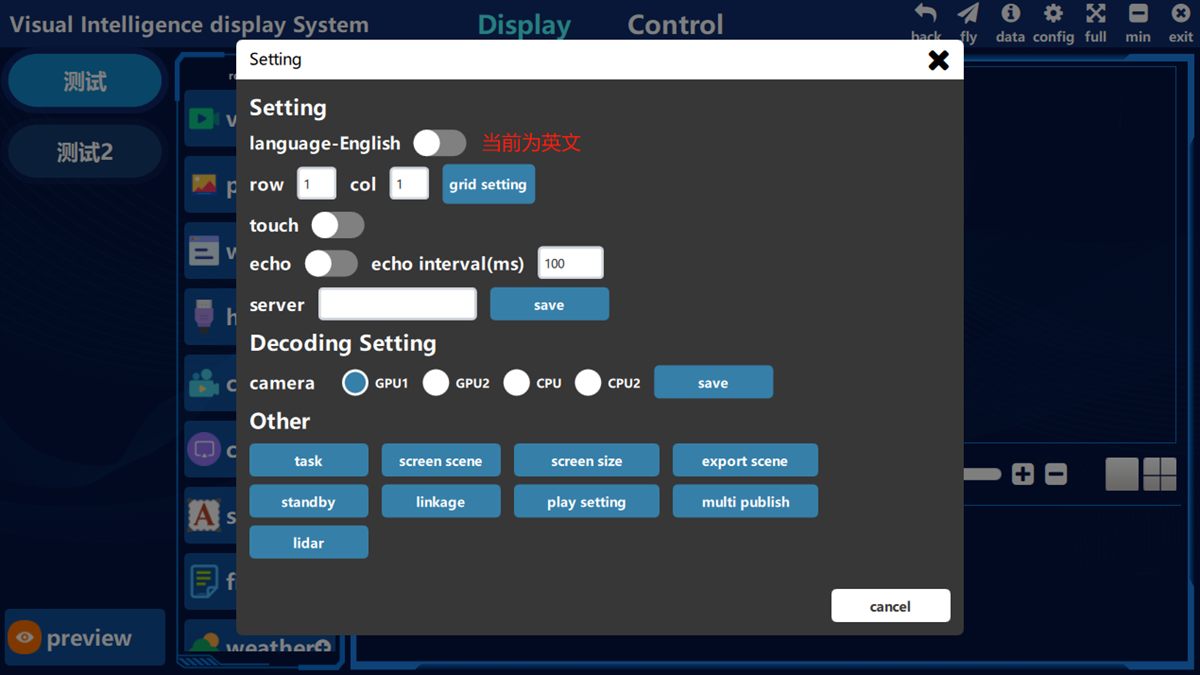
1. Switch between Chinese and English
- ① Click 设置(Settings) in the top-right corner of the software, then click the language switch button under 通用设置(General Settings) to switch freely between Chinese and English
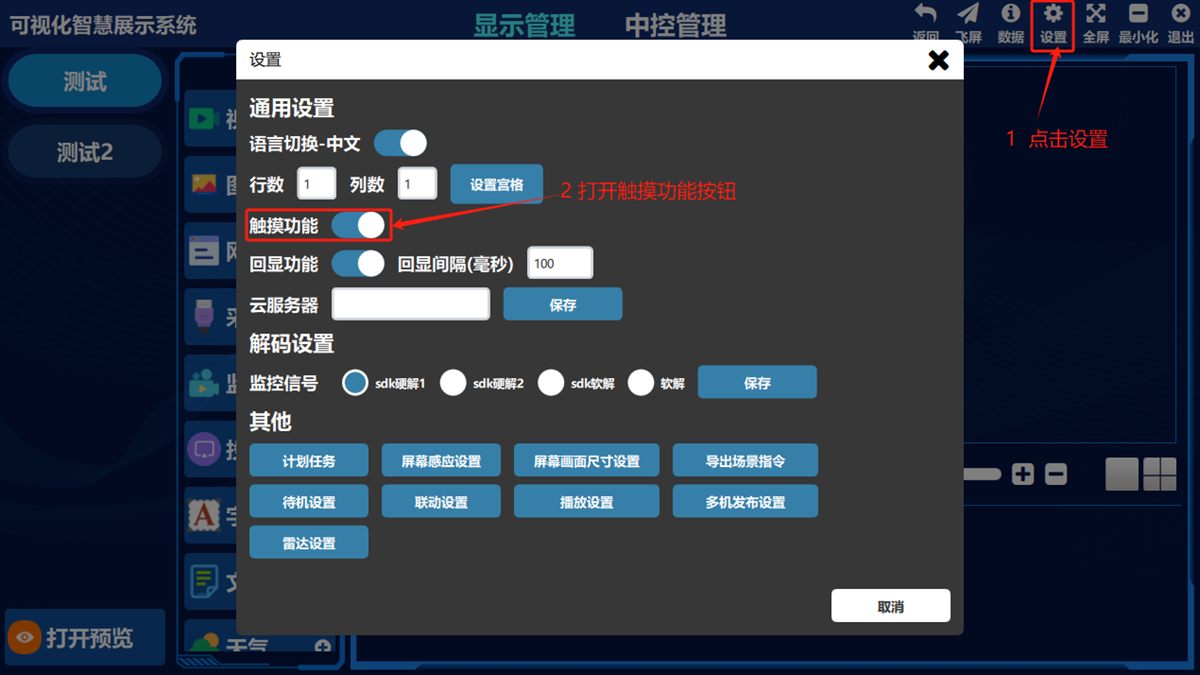
2. Touch (for touch all-in-one displays)
- ① Click 设置(Settings) in the top-right corner of the software and turn on the touch feature under General Settings to operate on the display server; click again to turn it off.
Display server:
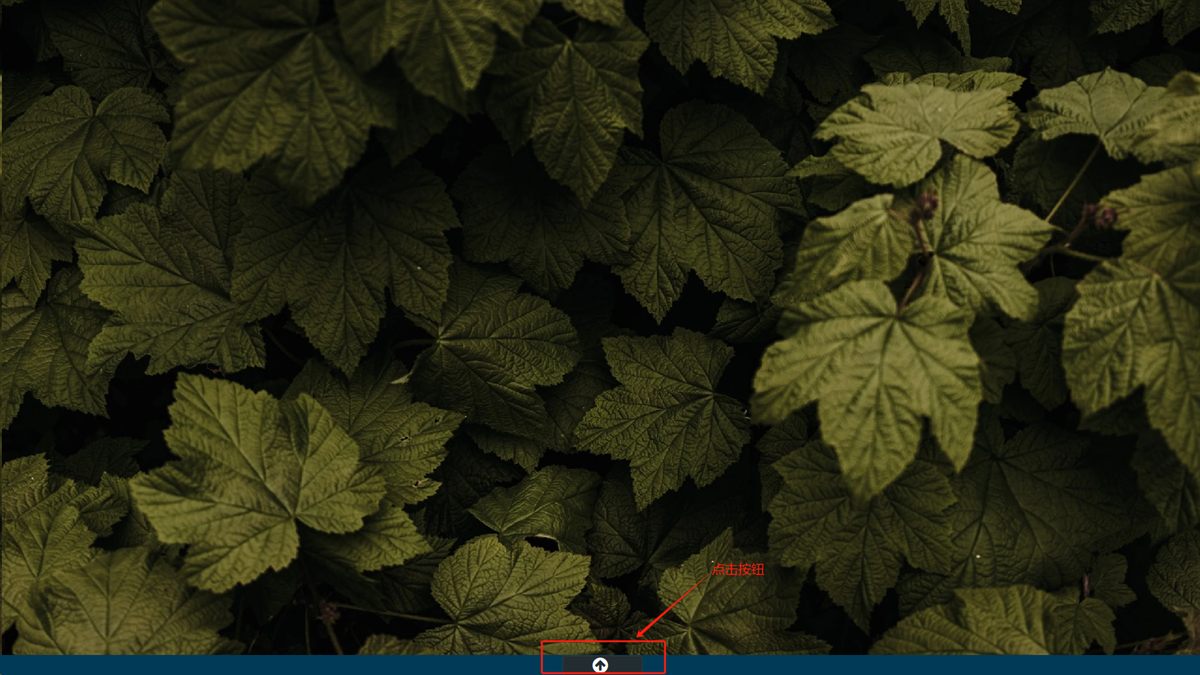
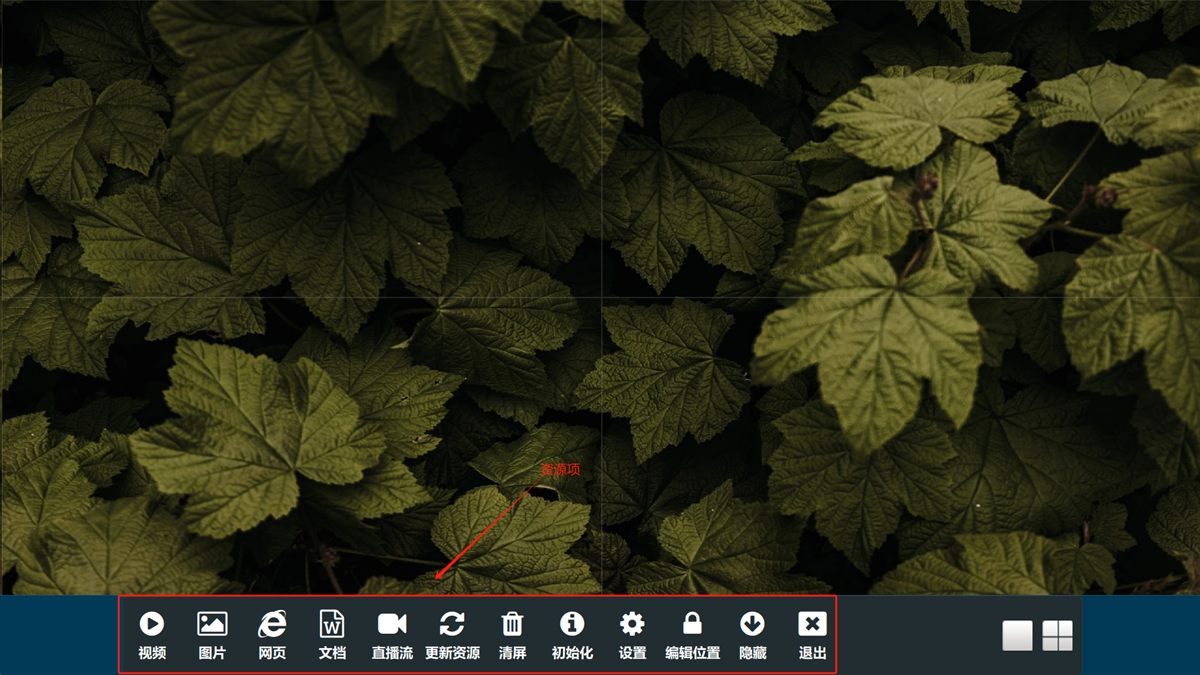
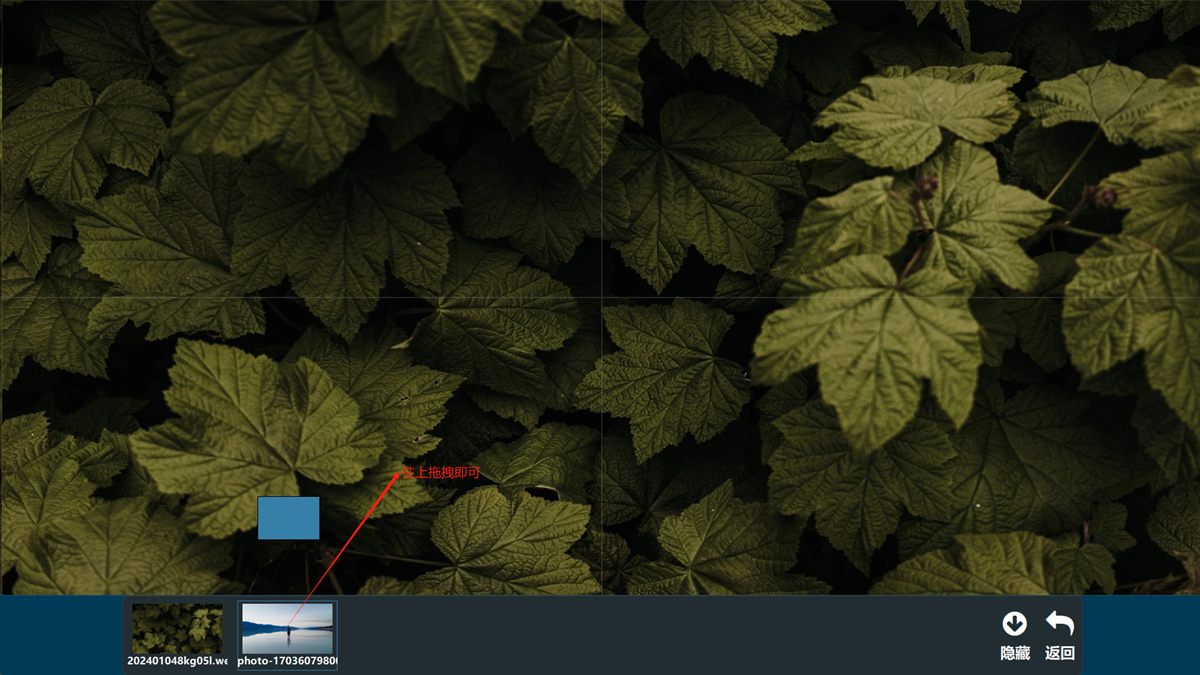
Click any asset item to preview the assets under it, and drag upward to publish.
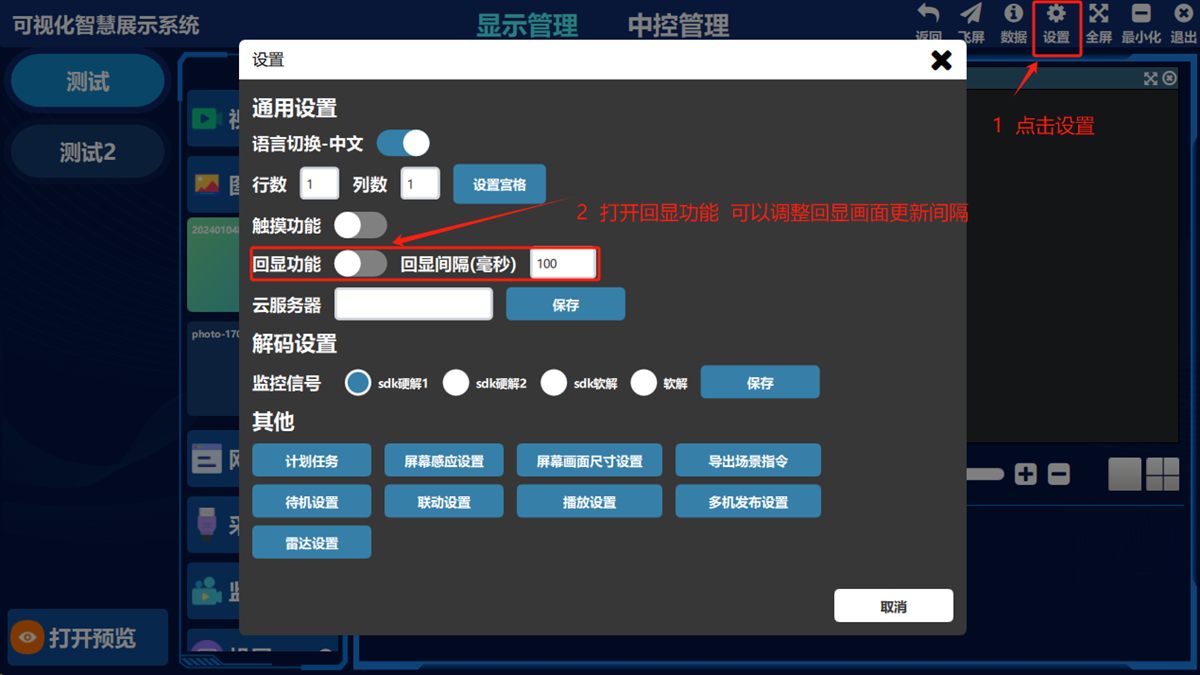
3. Return feed
- ① Click 设置(Settings) in the top-right corner of the software and turn on 回显(Return Feed) under General Settings; click again to turn it off.
Return feed off:
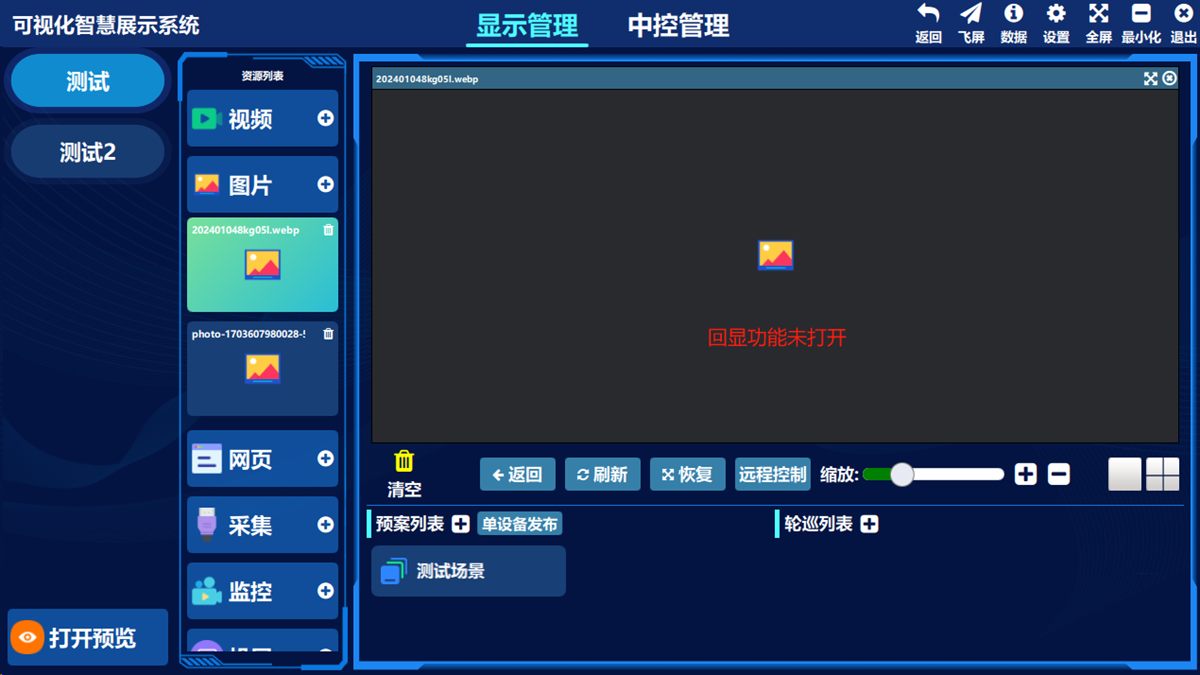
Return feed on:
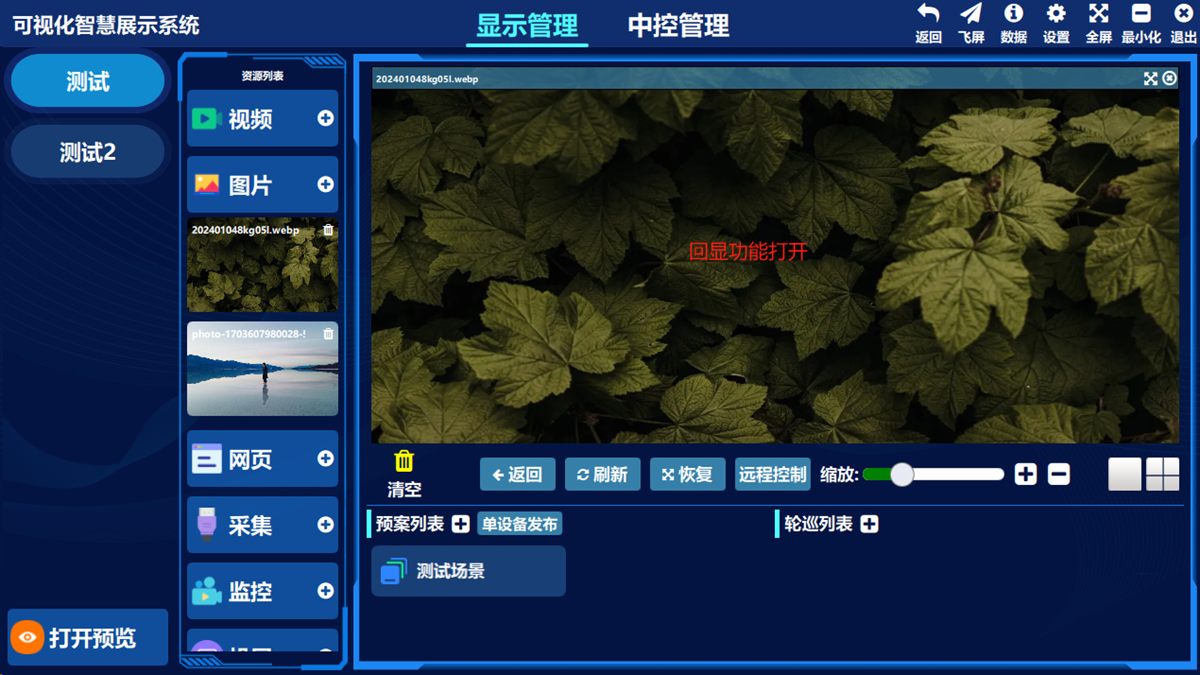
4. Scheduled tasks
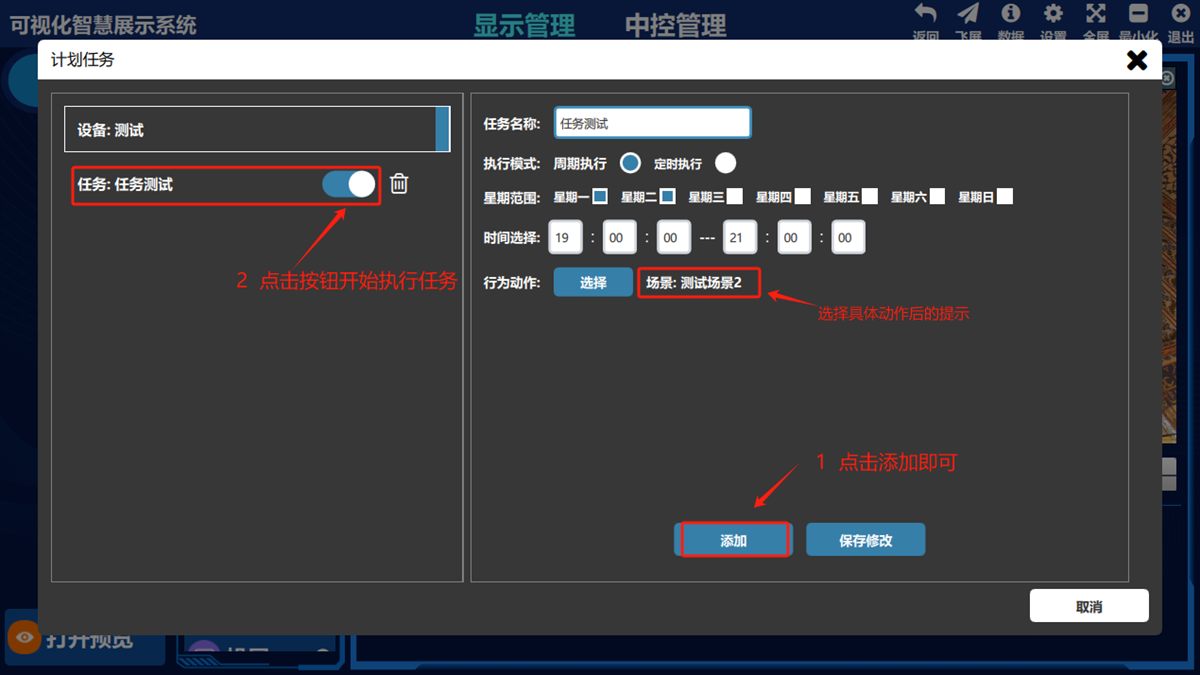
- ① Click 设置(Settings) in the top-right corner of the software and choose 计划任务(Scheduled Tasks)
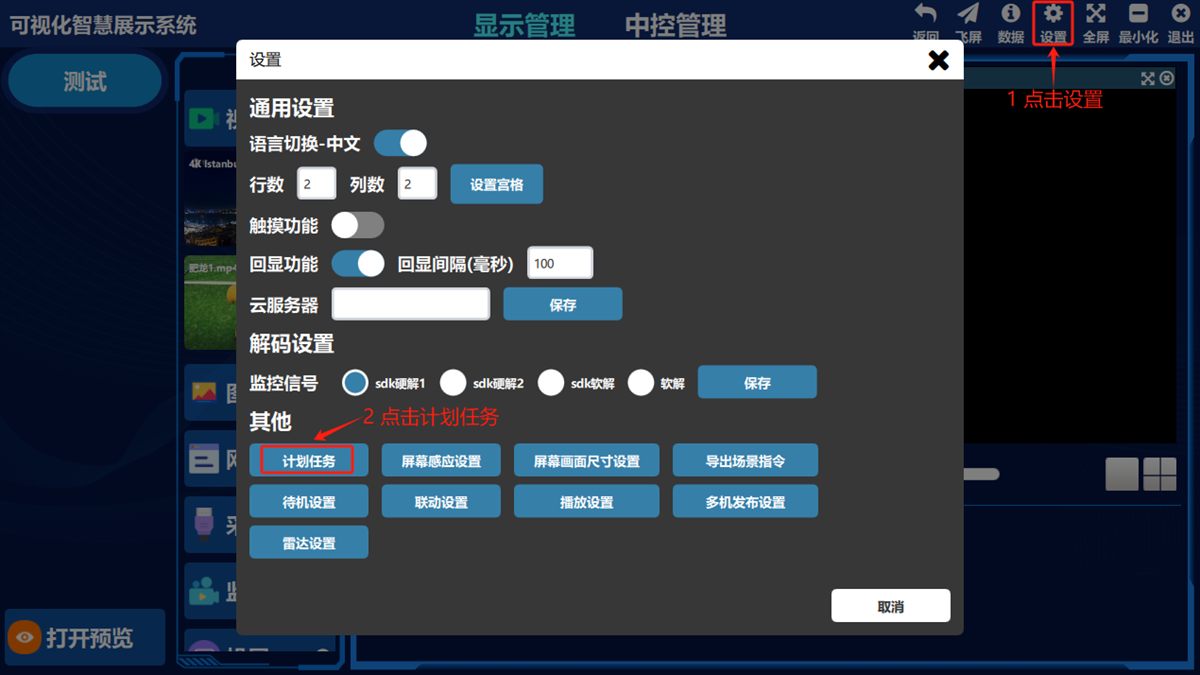
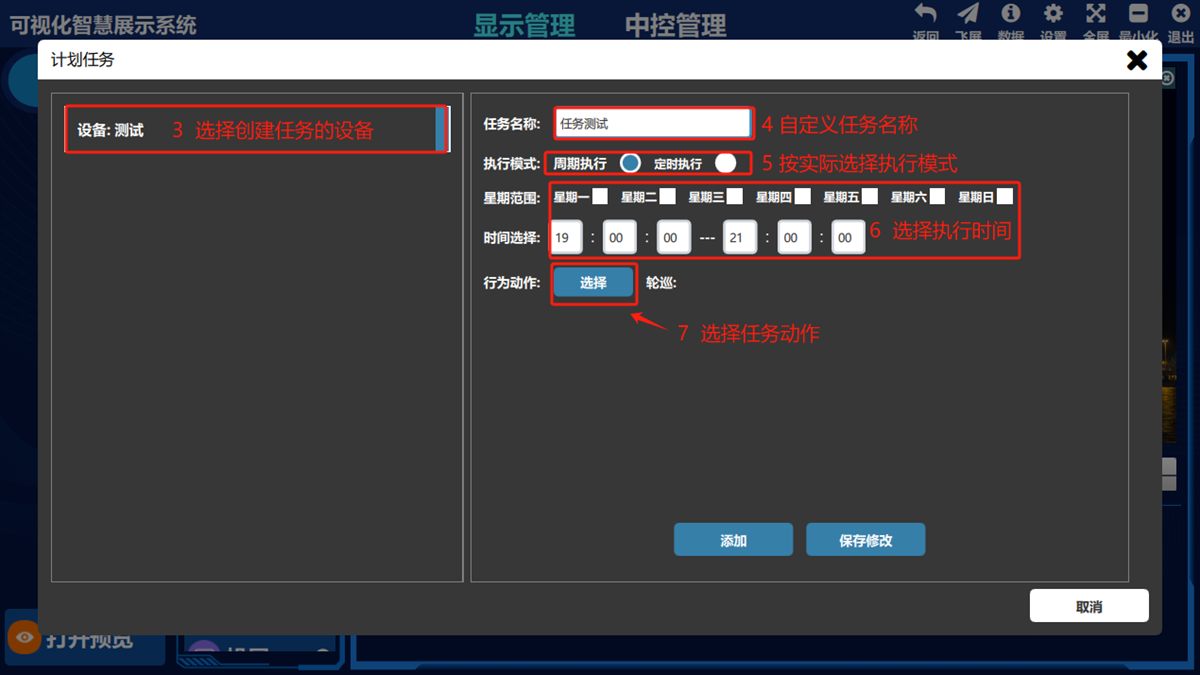
Select the device to create the task on, enter the task name, choose the execution mode, choose the execution cycle/time and choose the task action
Confirm the scene, the scene/window tour and other action types; double-click to select the specific action
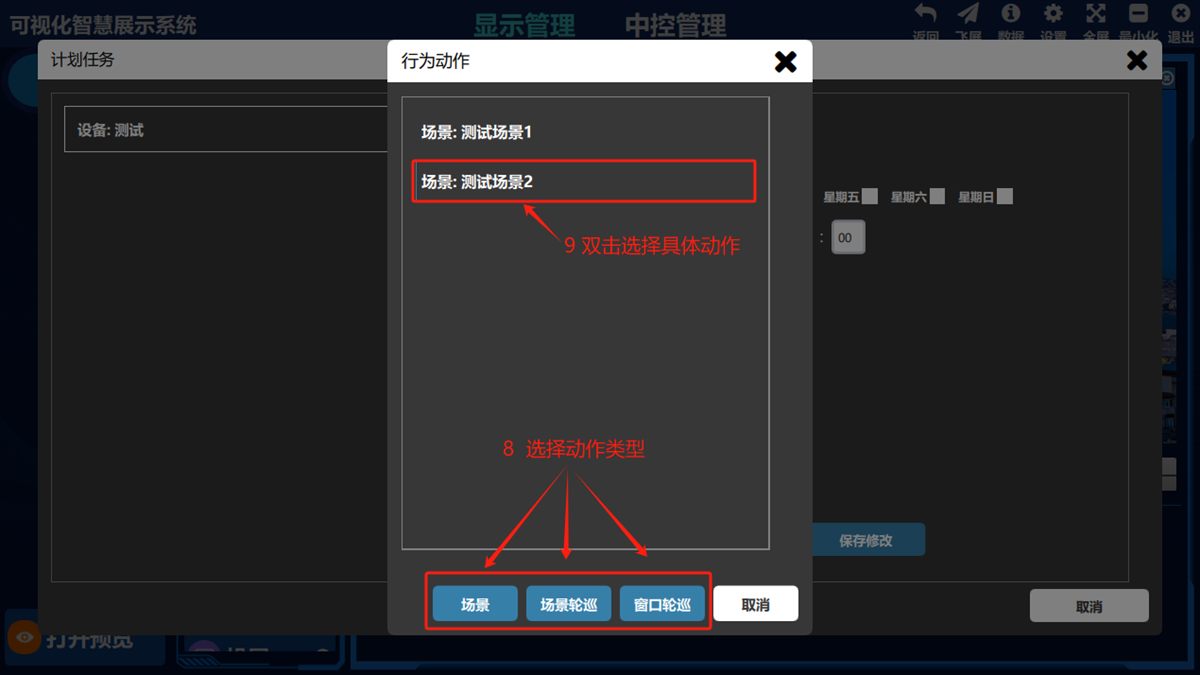
Click 添加(Add), then click the start button to run the task as configured.
5. Set the picture size
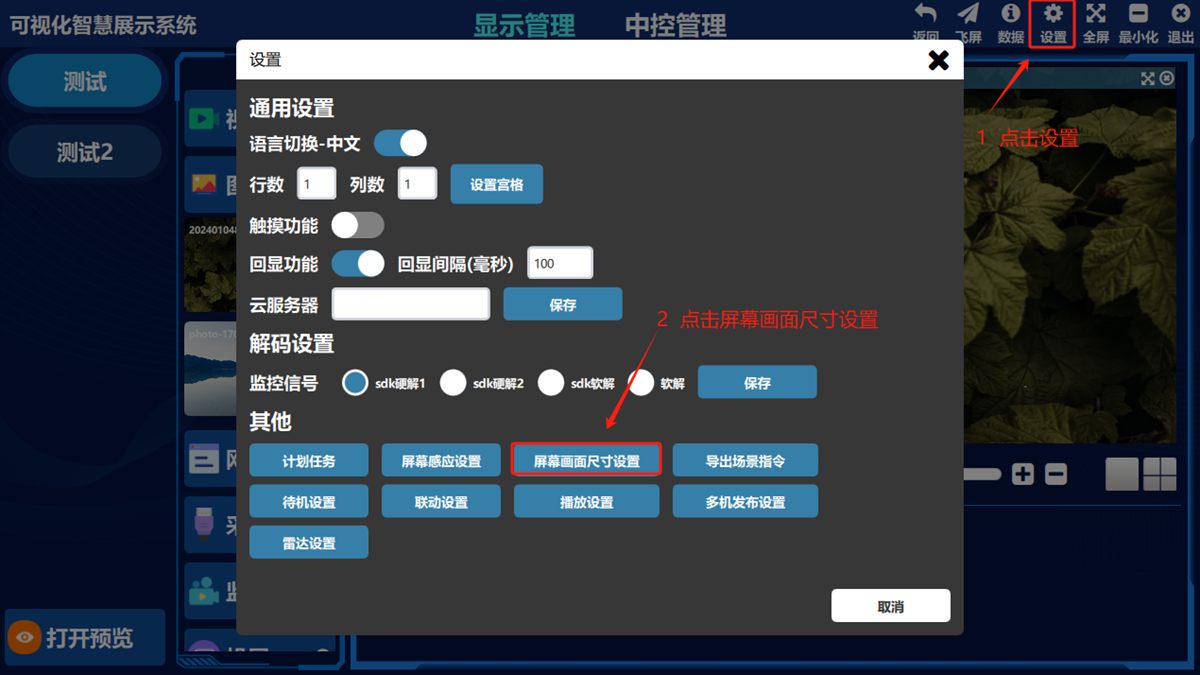
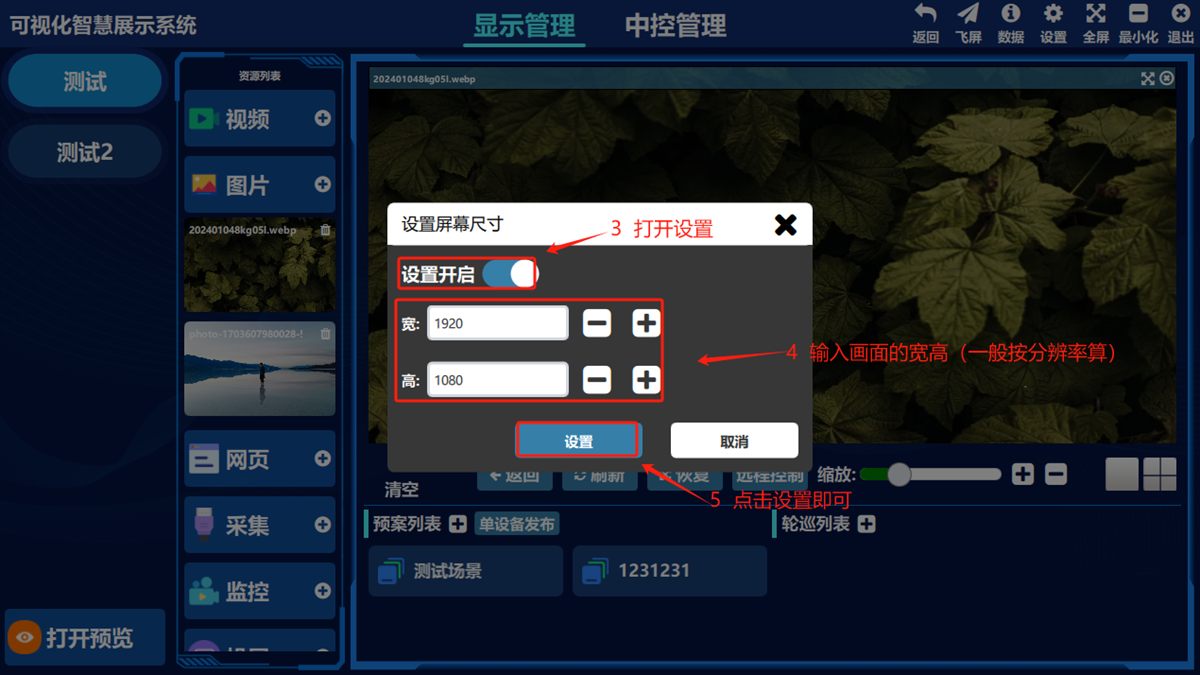
- ① Click 设置(Settings) in the top-right corner of the software and choose 屏幕画面尺寸大小(Screen Picture Size)
Turn the settings switch on, enter the picture resolution and click 设置(Set)
Export scene commands
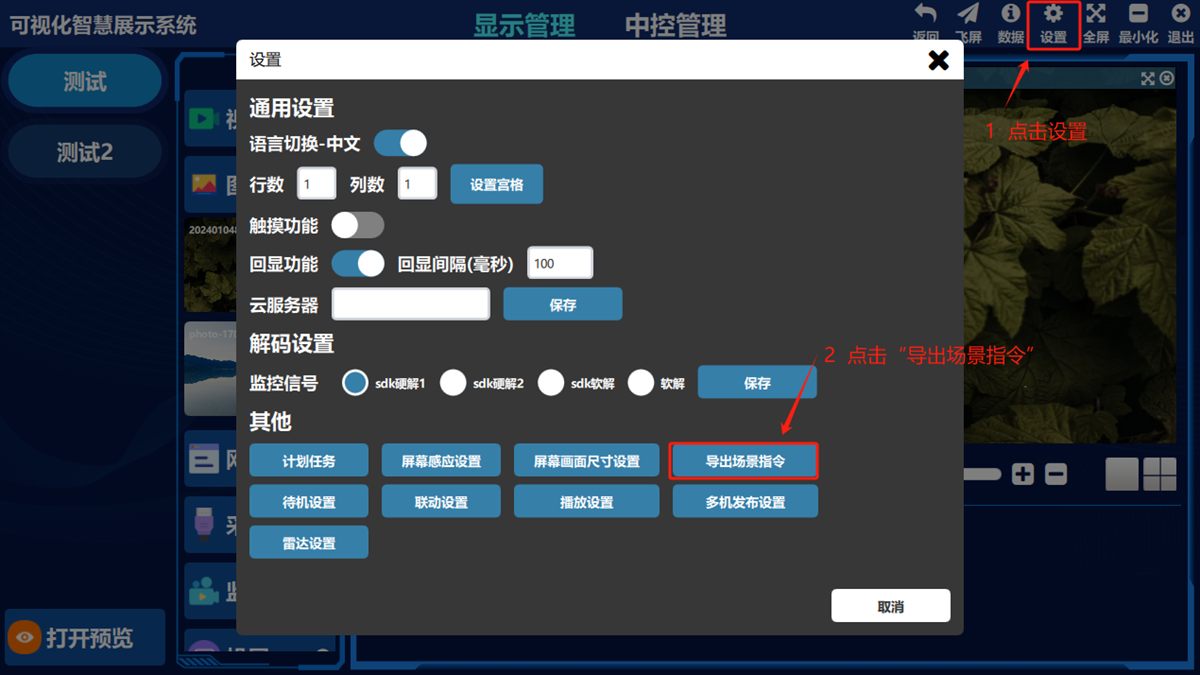
- ① Click 设置(Settings) in the top-right corner of the software and choose 导出场景指令(Export Scene Commands).
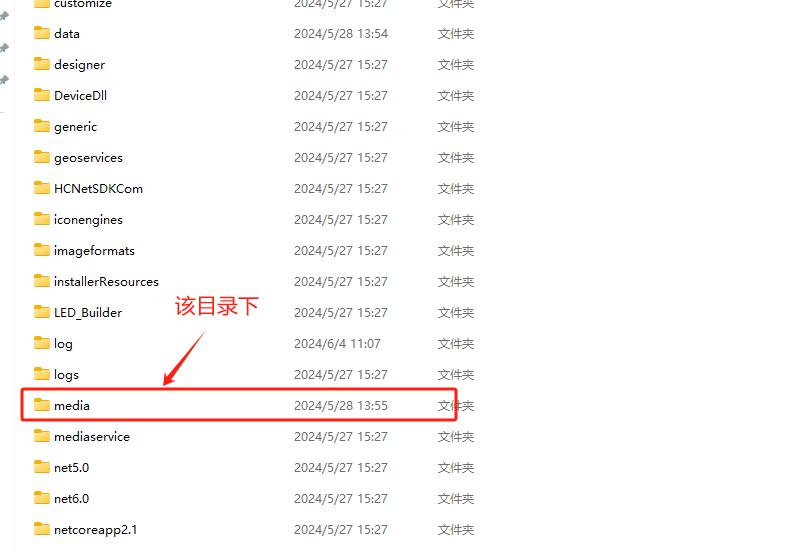
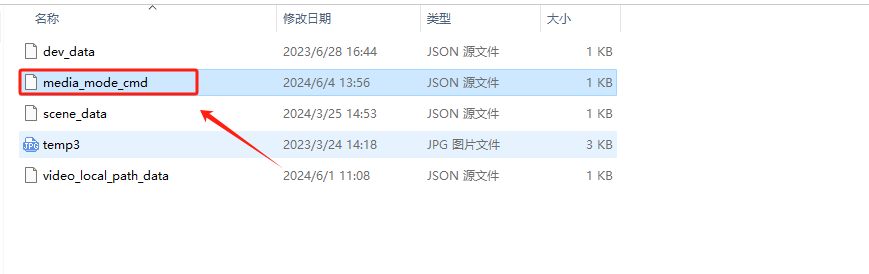
Then open the media folder in the software installation directory and open the file media_mode_cmd in Notepad; the commands are there and you can hand them to third-party software to call.
7. Standby settings
- ① Click 设置(Settings) in the top-right corner of the software and choose 待机设置(Standby Settings).
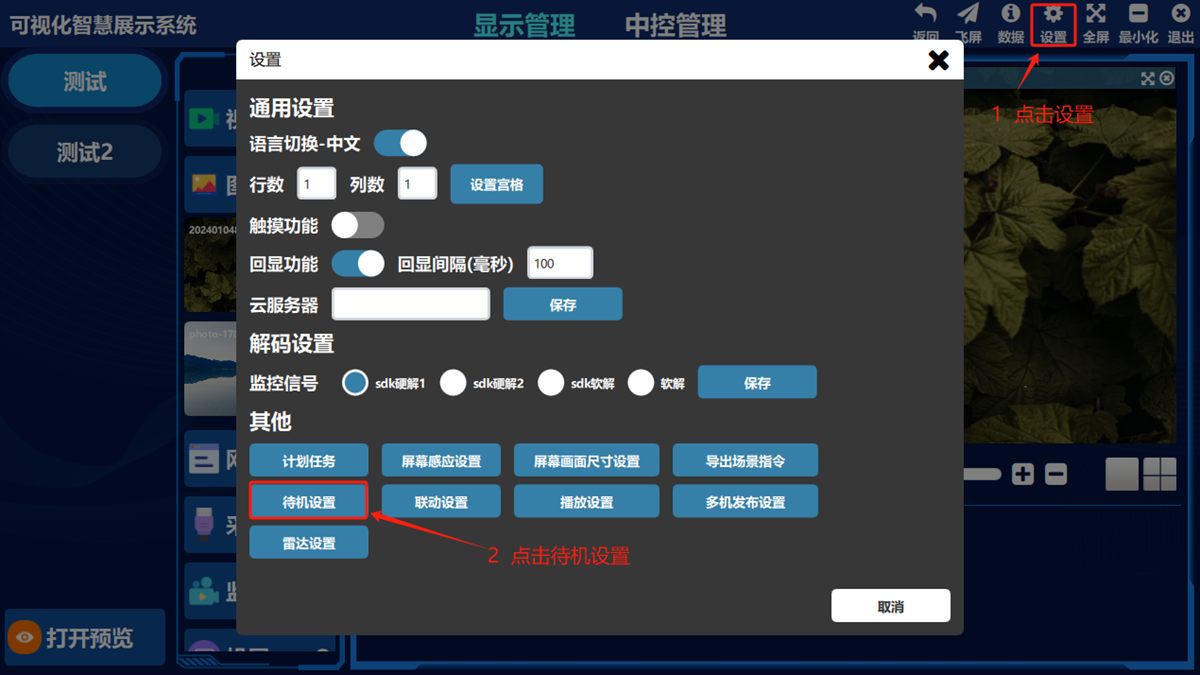
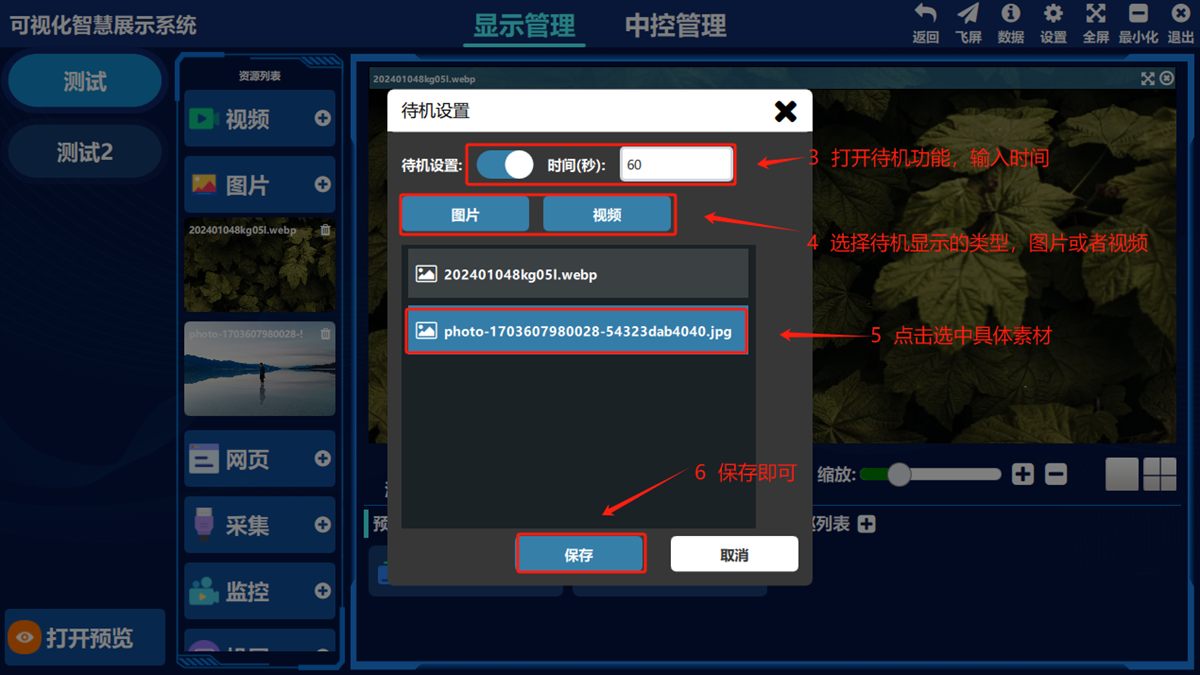
Turn standby on or off, set the time to enter standby, choose the standby display type (image or video), select the specific asset, then save
8. Linkage settings
- ① Click 设置(Settings) in the top-right corner of the software and choose 联动设置(Linkage Settings).
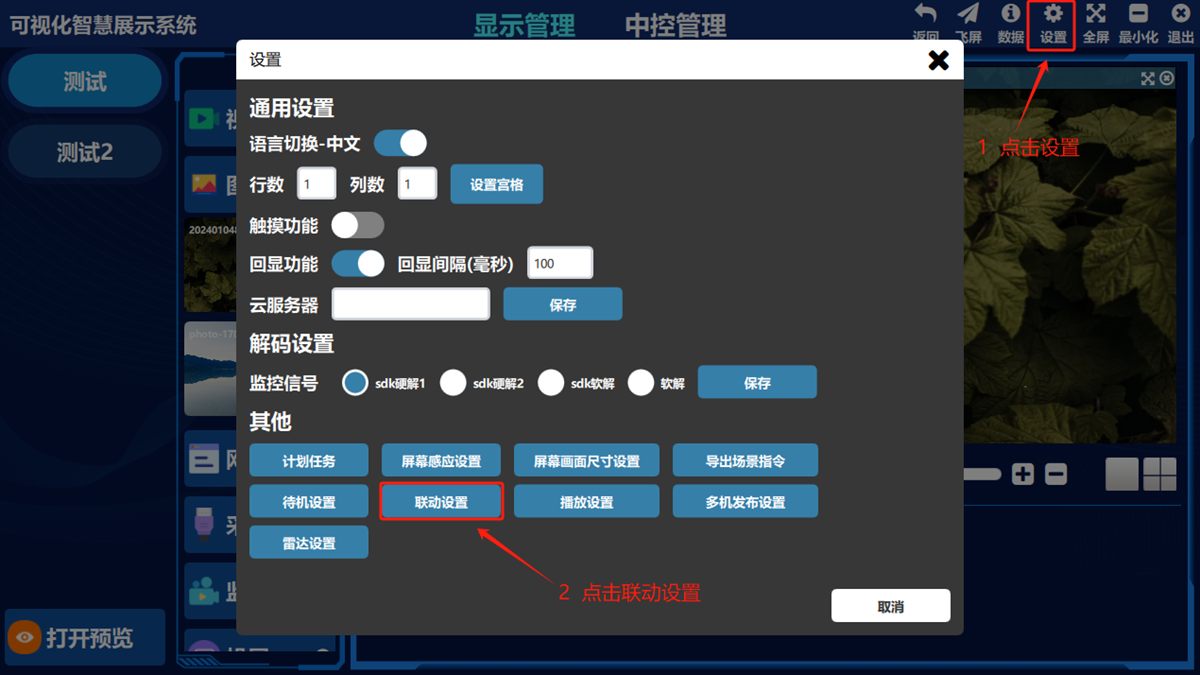
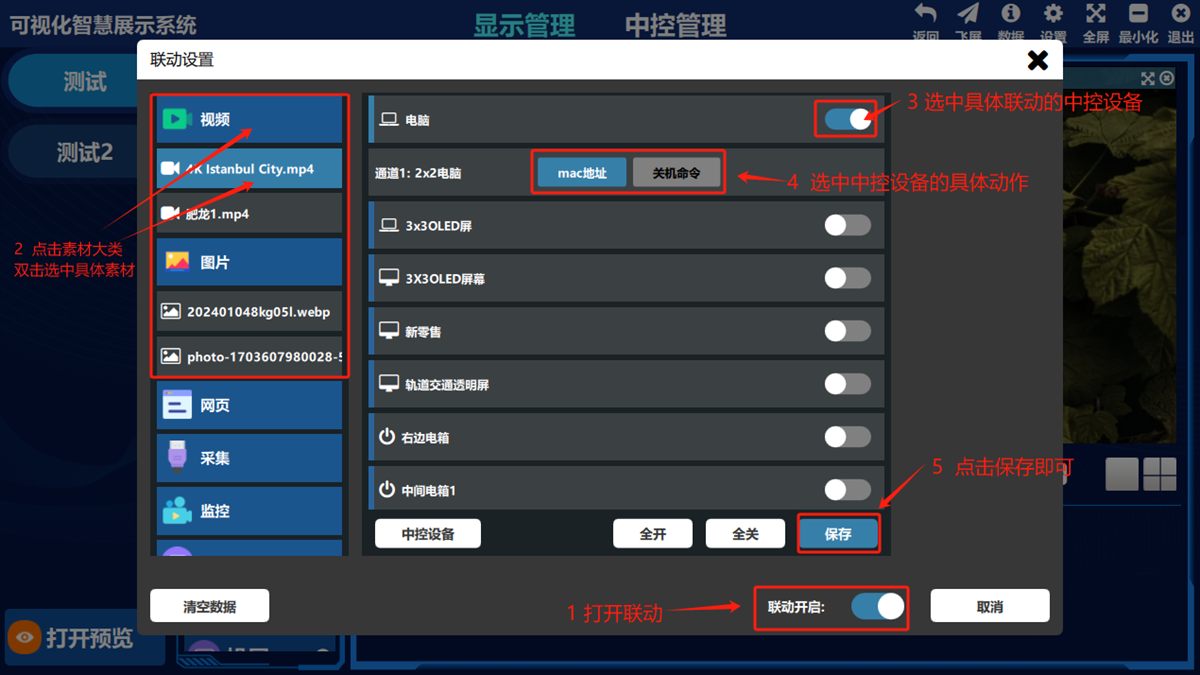
Turn the linkage switch on, click an asset category, double-click the specific asset, select the control center device to link and the specific action on it, then click 保存(Save).
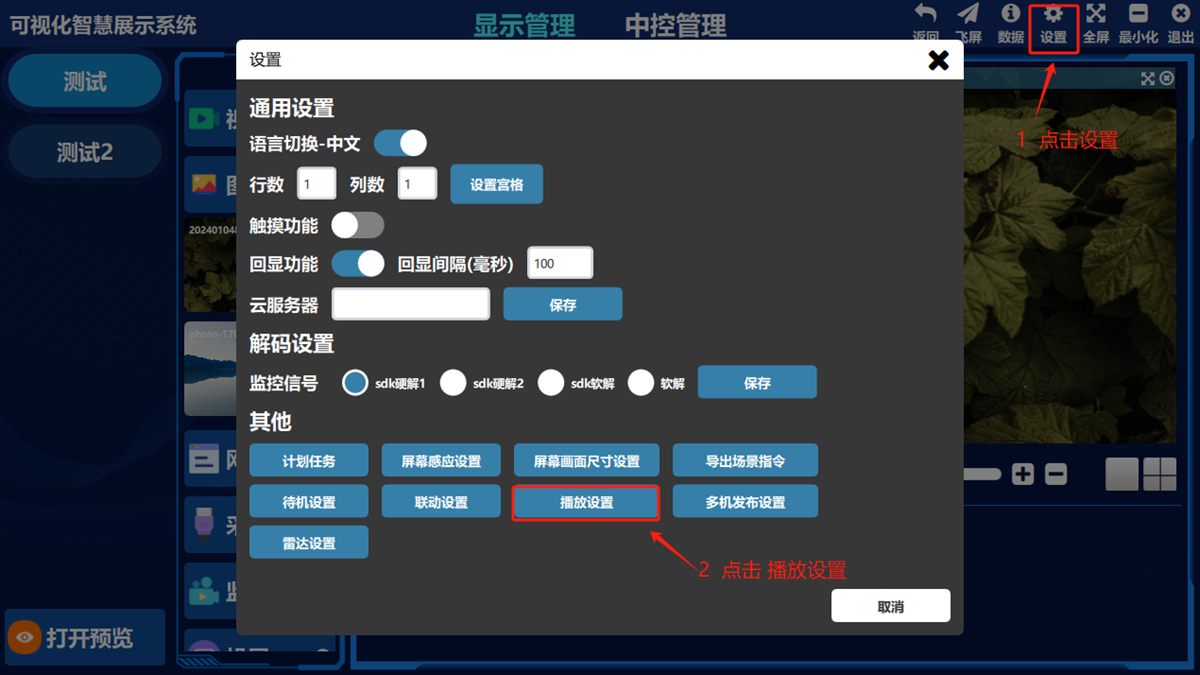
9. Playback settings
- ① Click 设置(Settings) in the top-right corner of the software and choose 播放设置(Playback Settings).
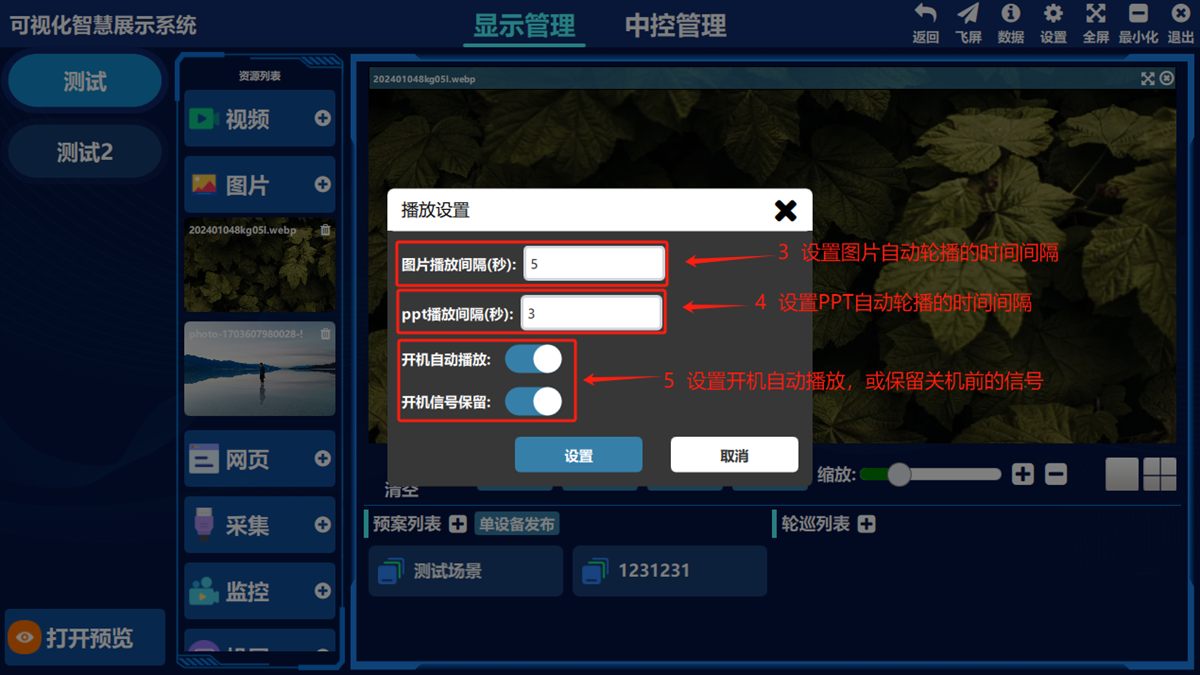
You can set the automatic slideshow interval for images and for PPT files
- ⑤ Set automatic playback at startup, or keep the signal from before shutdown
Was this page helpful?A one-line note helps us make these steps more accurate.