Documentation
Getting Started
Devices and Assets
Publishing and Display
Scenes and Patrol
Management and Settings
Troubleshooting and Support
Control Center
Click 中控管理(Control Center) in the top bar of the software home screen to switch to the control screen (shown below). There you can control many kinds of equipment individually or together, and combine several of them into presets — the degree of customization is high.
1. Device control
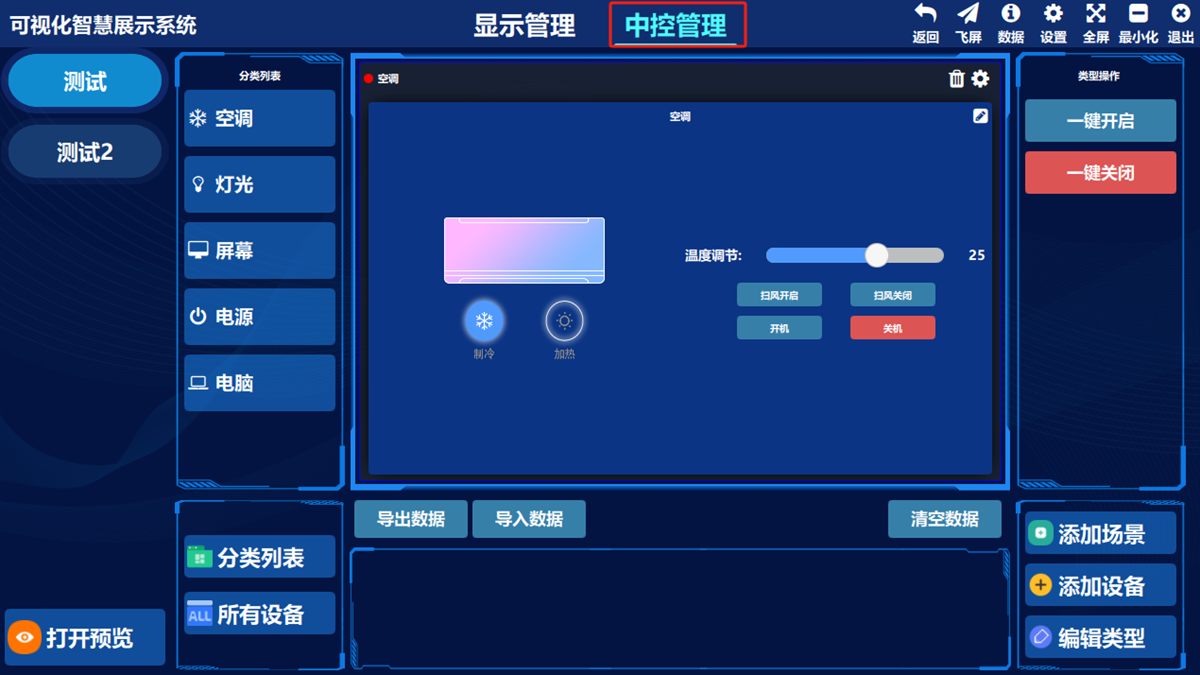
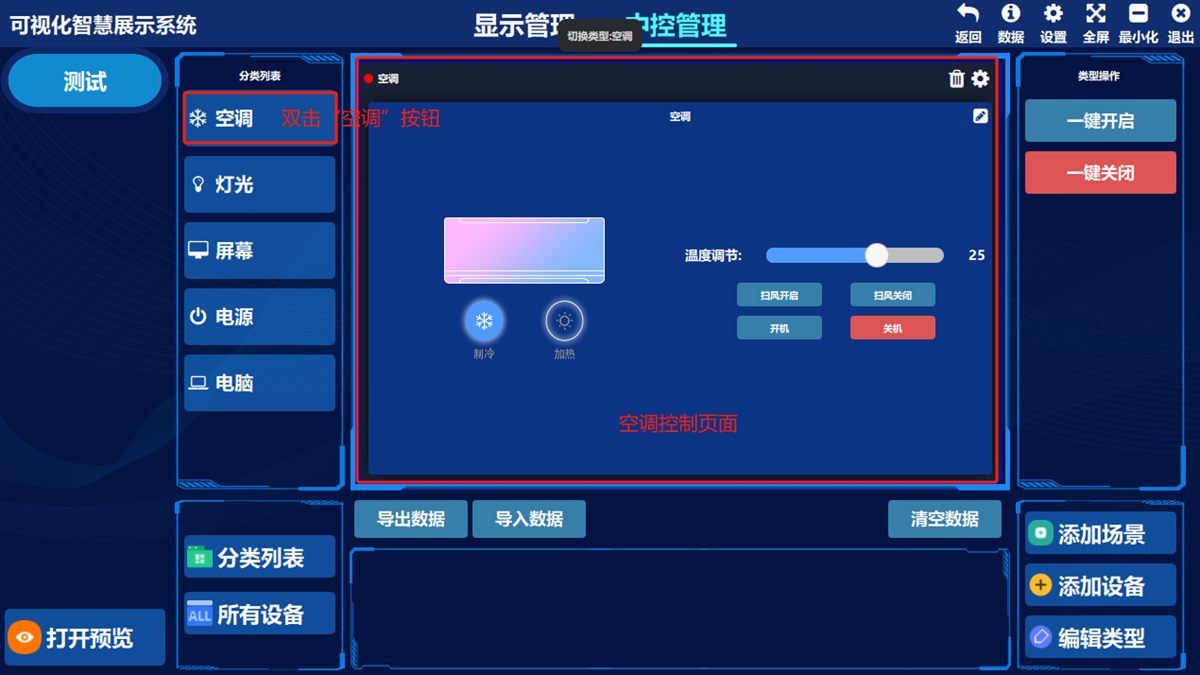
Air conditioning control
Double-click 空调(Air Conditioning) to switch to the air conditioning control screen
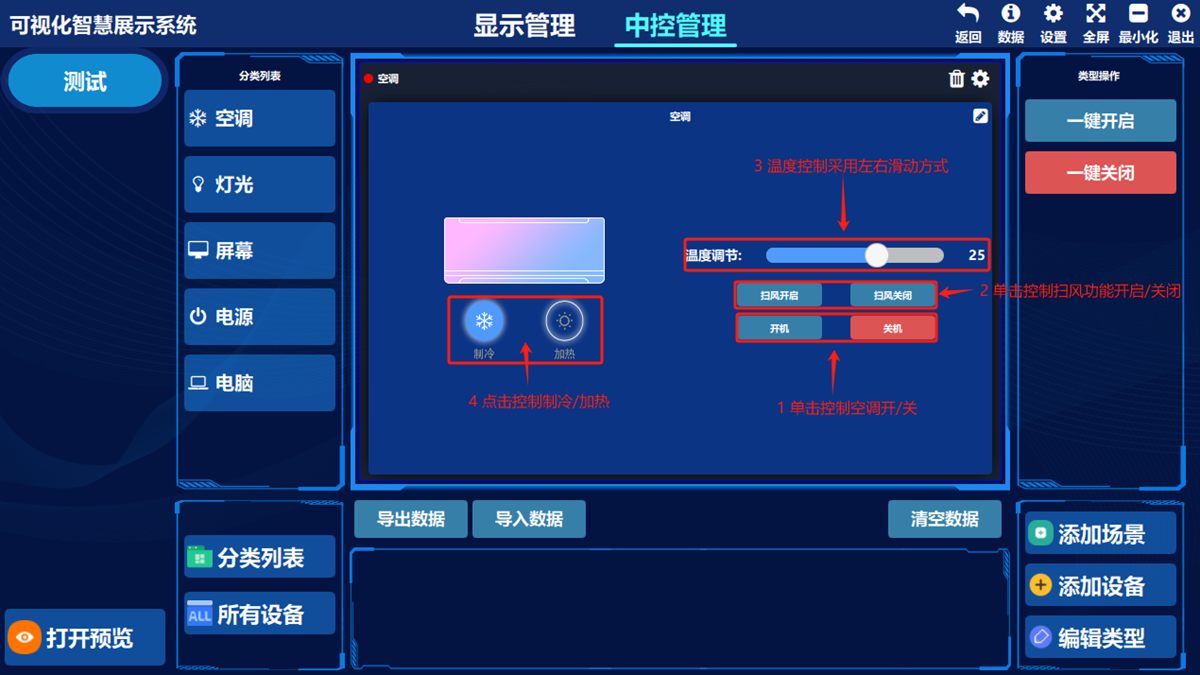
(Illustration) What the screen does:
Turn the air conditioning on/off, turn the swing function on/off, adjust the temperature (slide left or right to raise or lower it), switch between cooling and heating mode
Lighting control
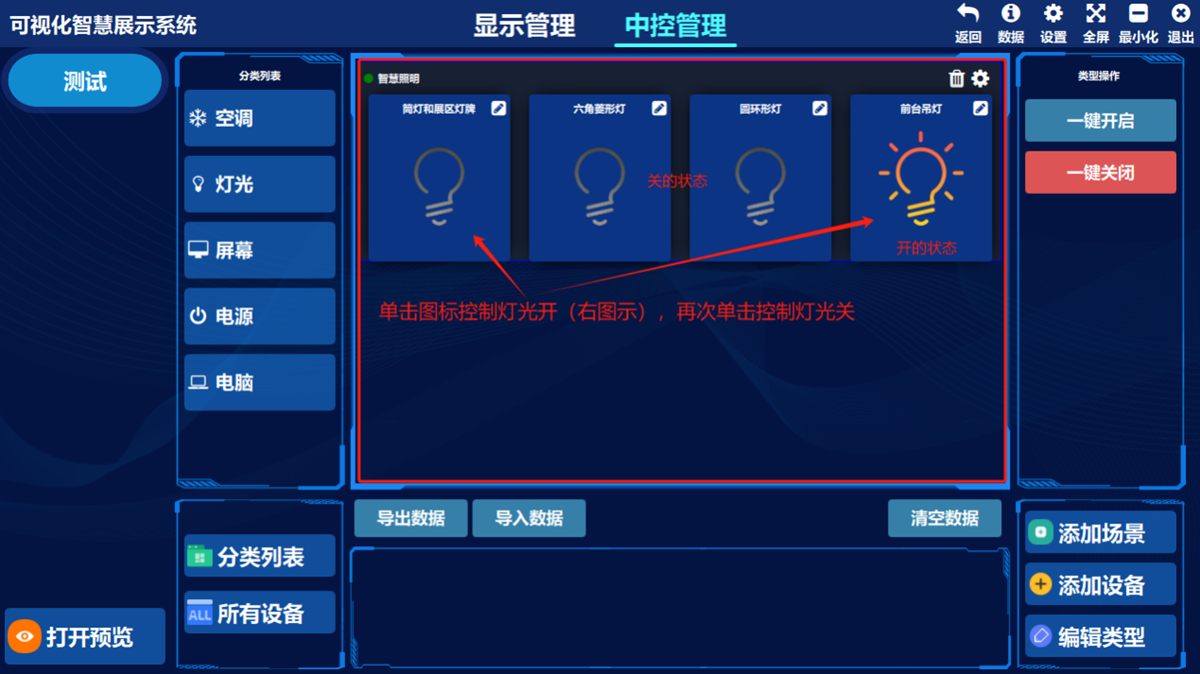
Double-click 灯光(Lighting) to switch to the lighting control screen
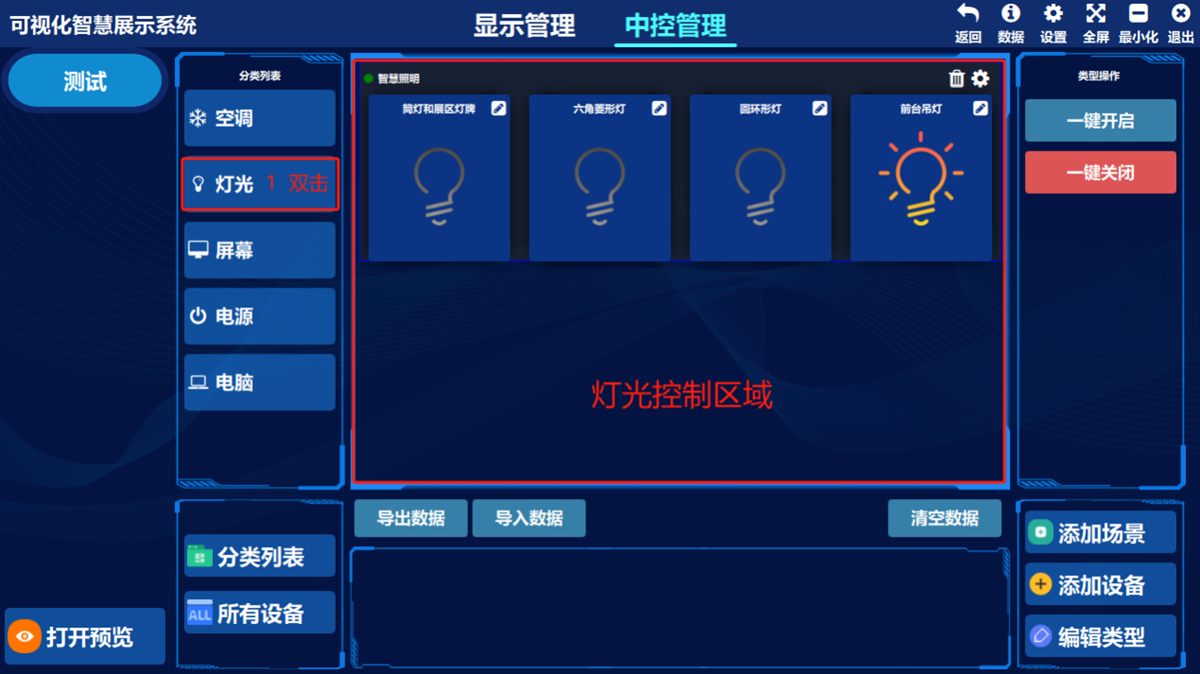
(Illustration) What the screen does:
Turn the lighting on/off and show the current lighting status
Screen on/off control
Double-click 屏幕(Screen) to switch to the control screen
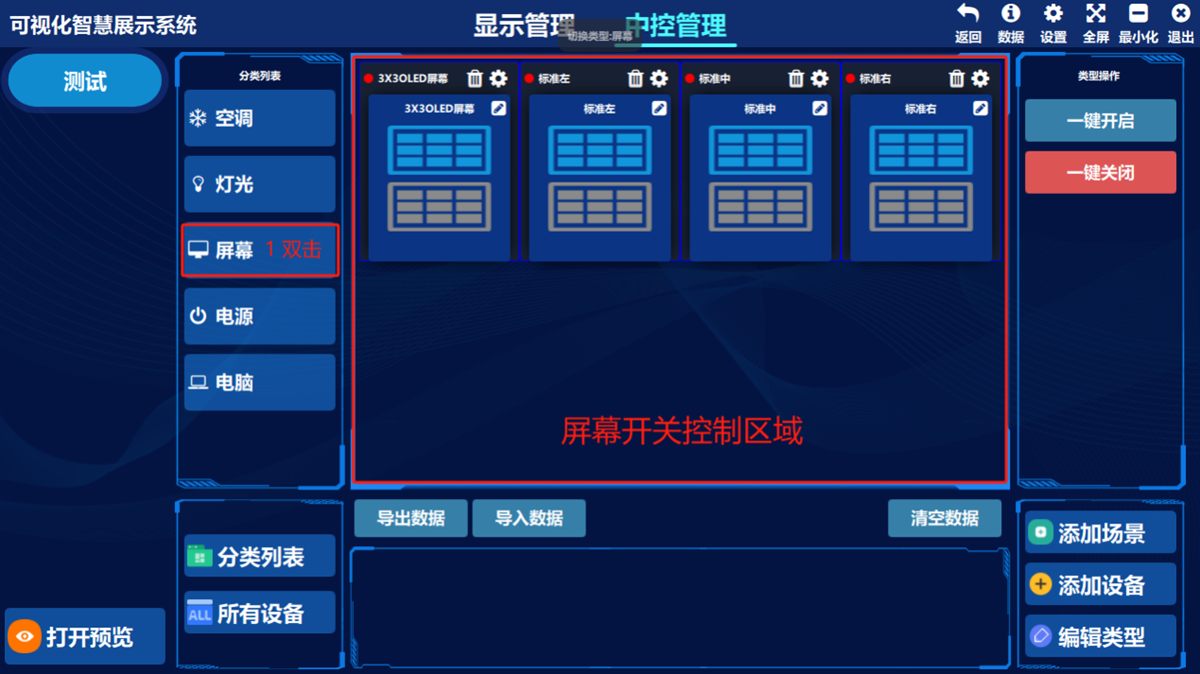
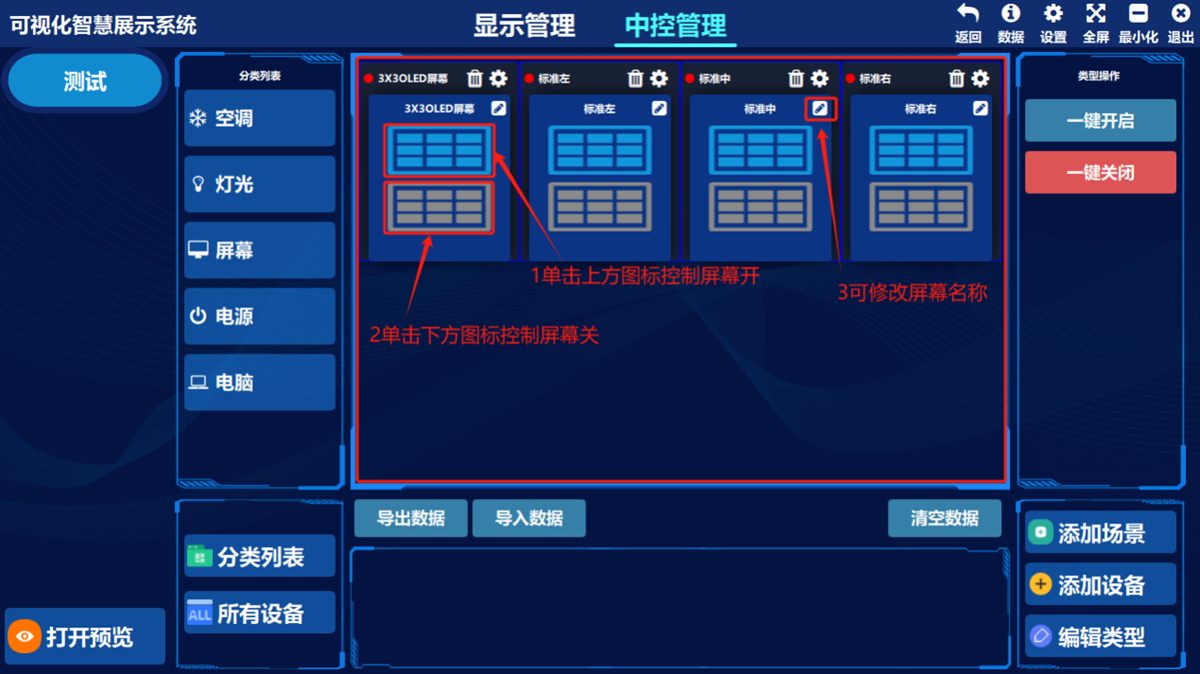
(Illustration) What the screen does:
Turn screens on/off, label or modify the screen name behind each switch button
Power control
Double-click 电源(Power) to switch to the control screen
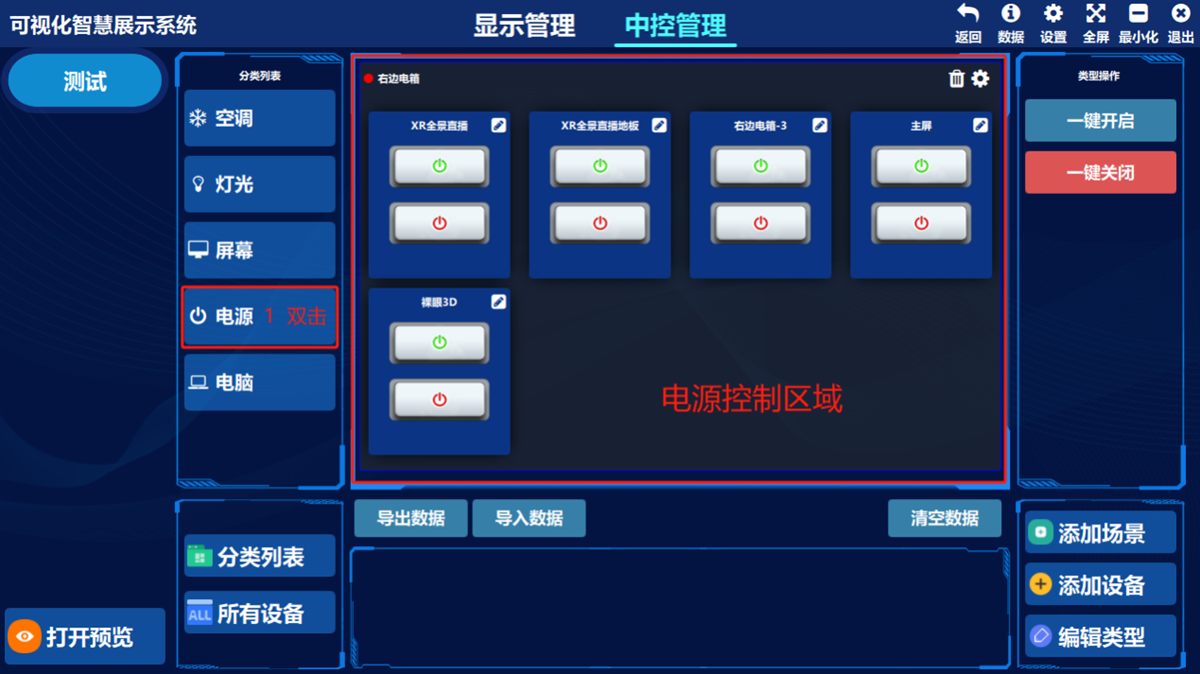
(Illustration) What the screen does:
Turn the power on/off, label or modify the power name behind each switch button
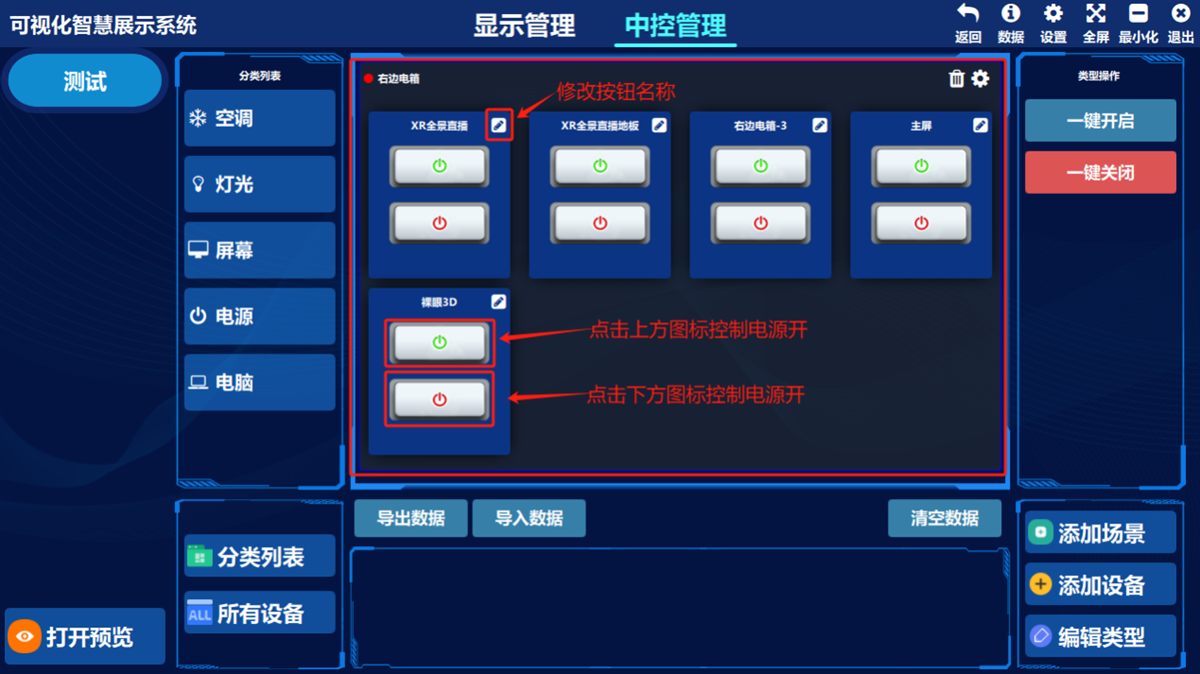
Computer power control
Double-click 电脑(Computer) to switch to the control screen
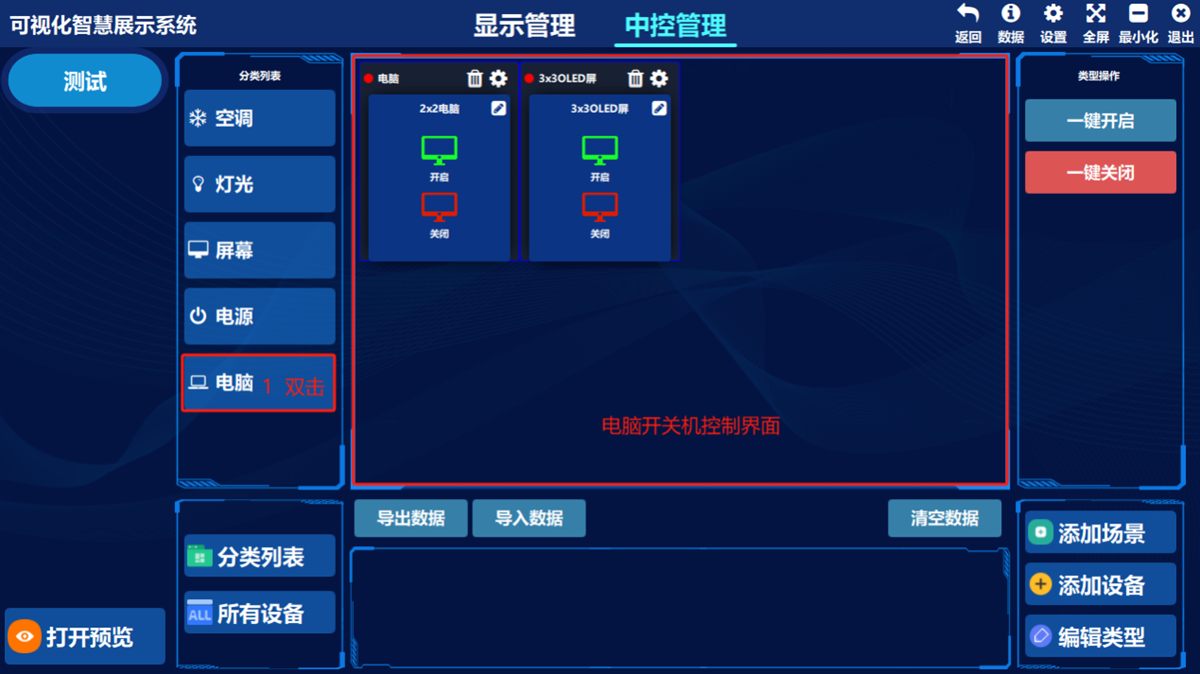
(Illustration) What the screen does:
Turn computers on/off, label or modify the computer name behind each switch button
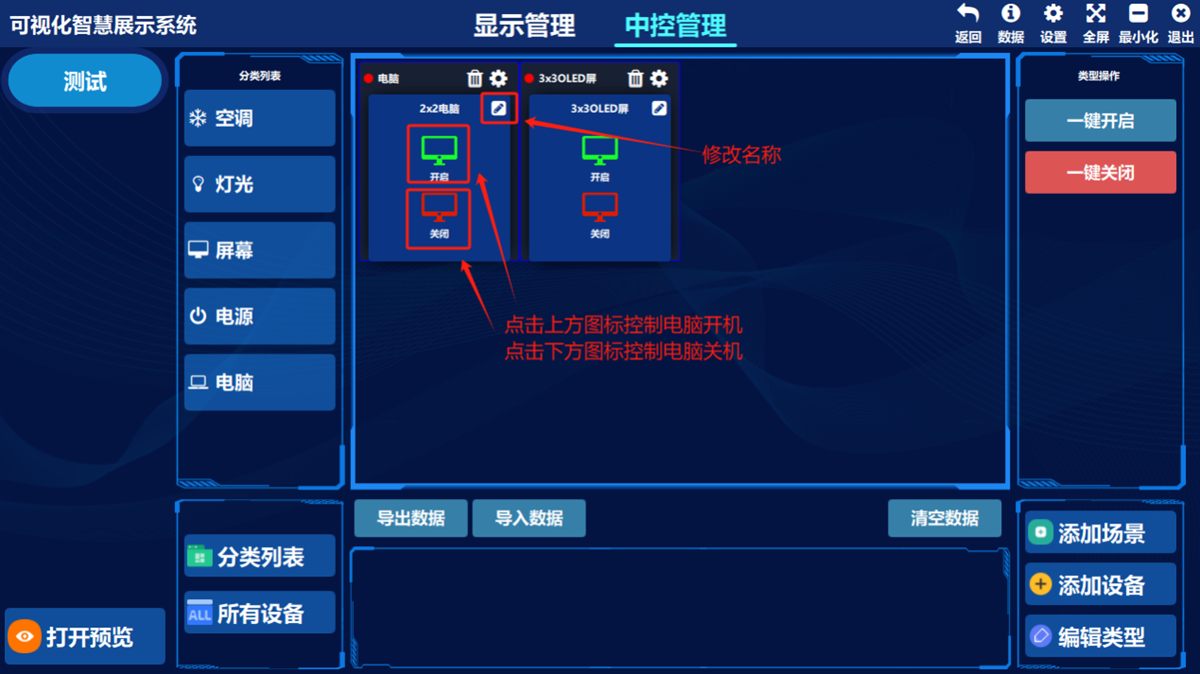
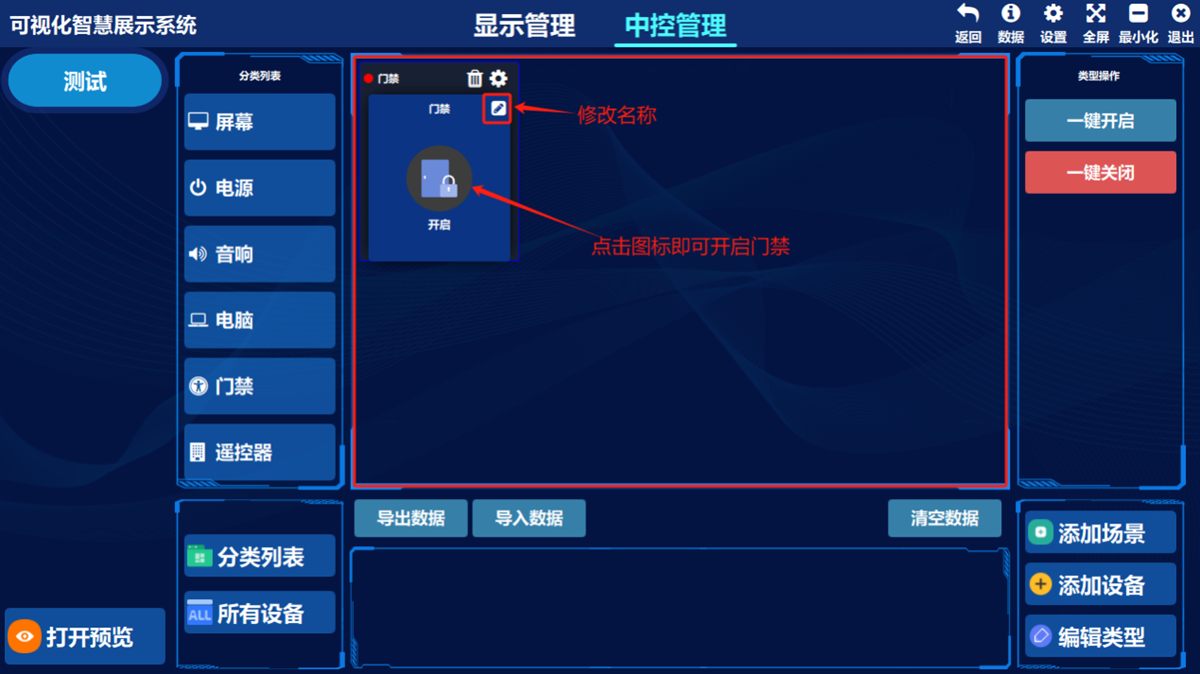
Access control
Double-click 门禁(Access Control) to switch to the control screen
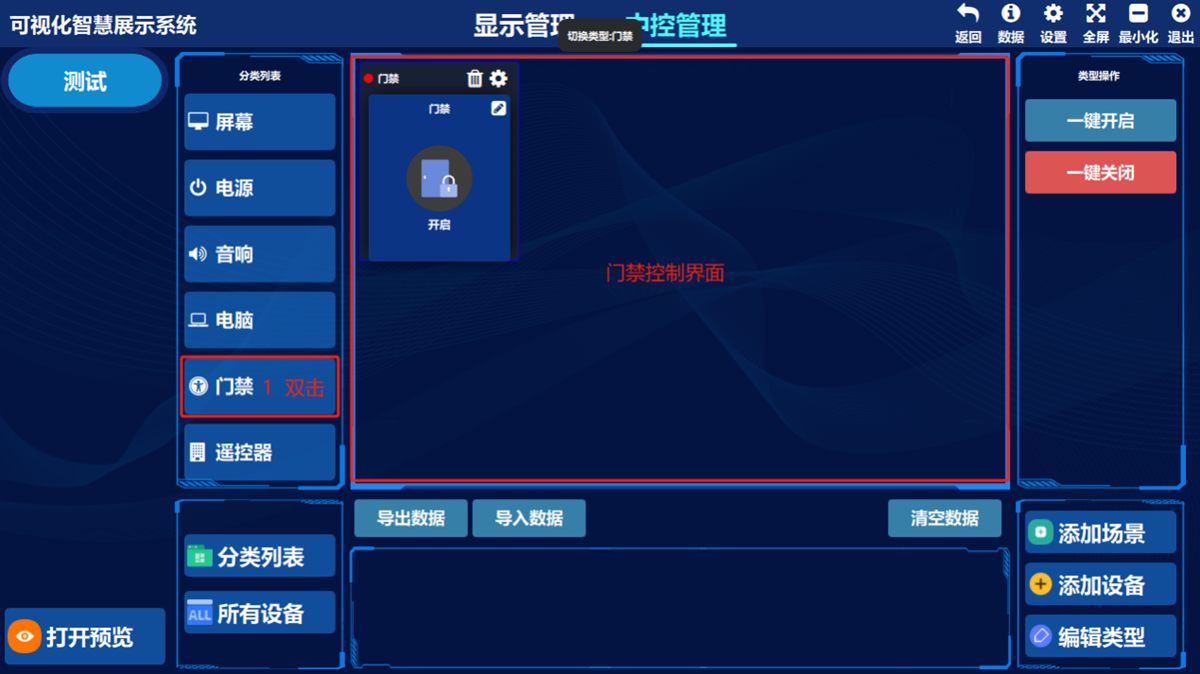
(Illustration) What the screen does:
Open the access control, label or modify the access control name behind each switch button
Remote control
Double-click 遥控器(Remote Control) to switch to the control screen
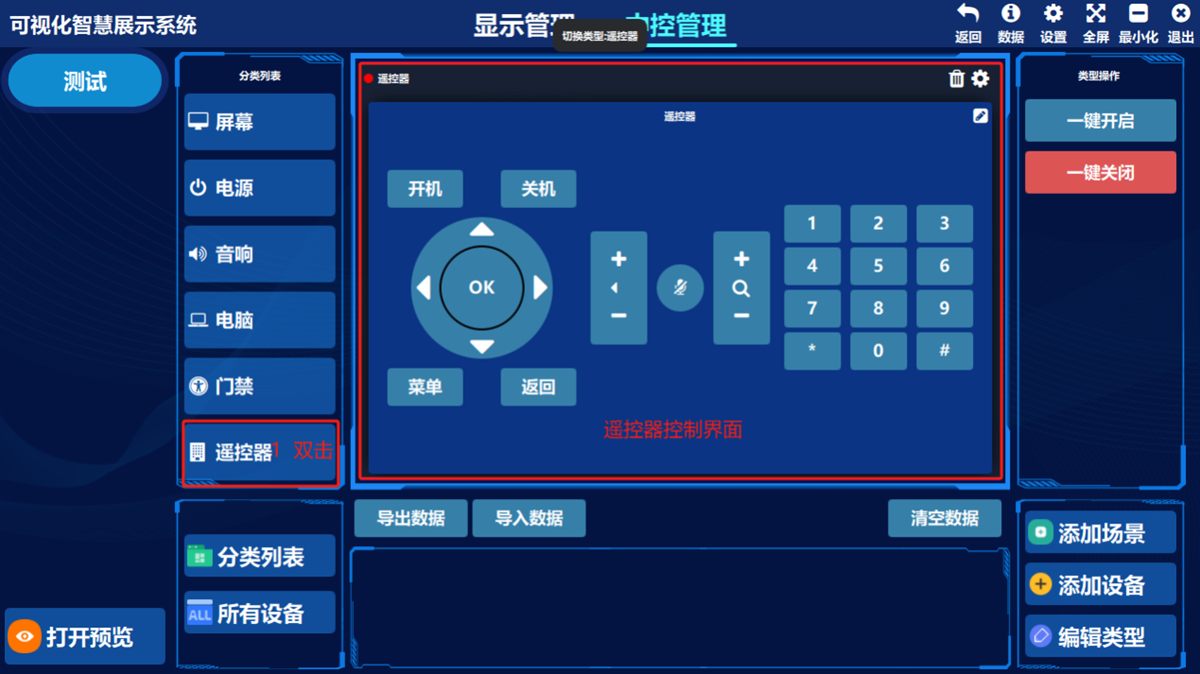
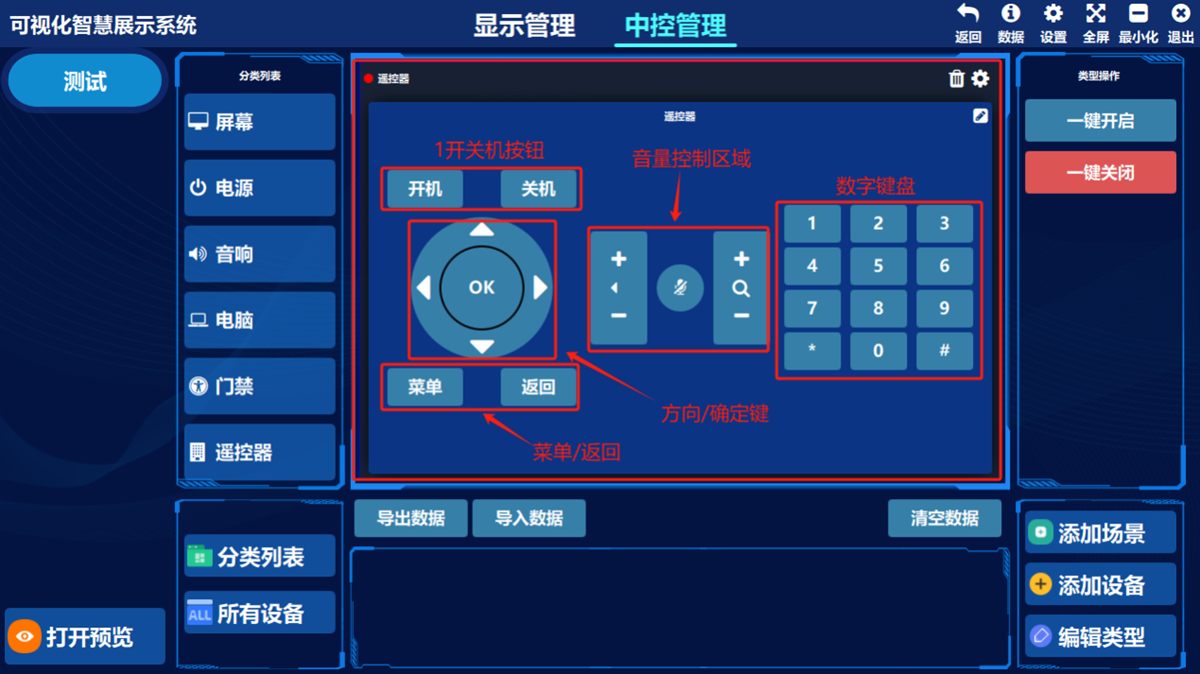
(Illustration) What the screen does:
Mirror the on/off keys of the remote control, mirror its direction pad and the OK key, mirror the menu and back functions, mirror the volume control and the number keypad
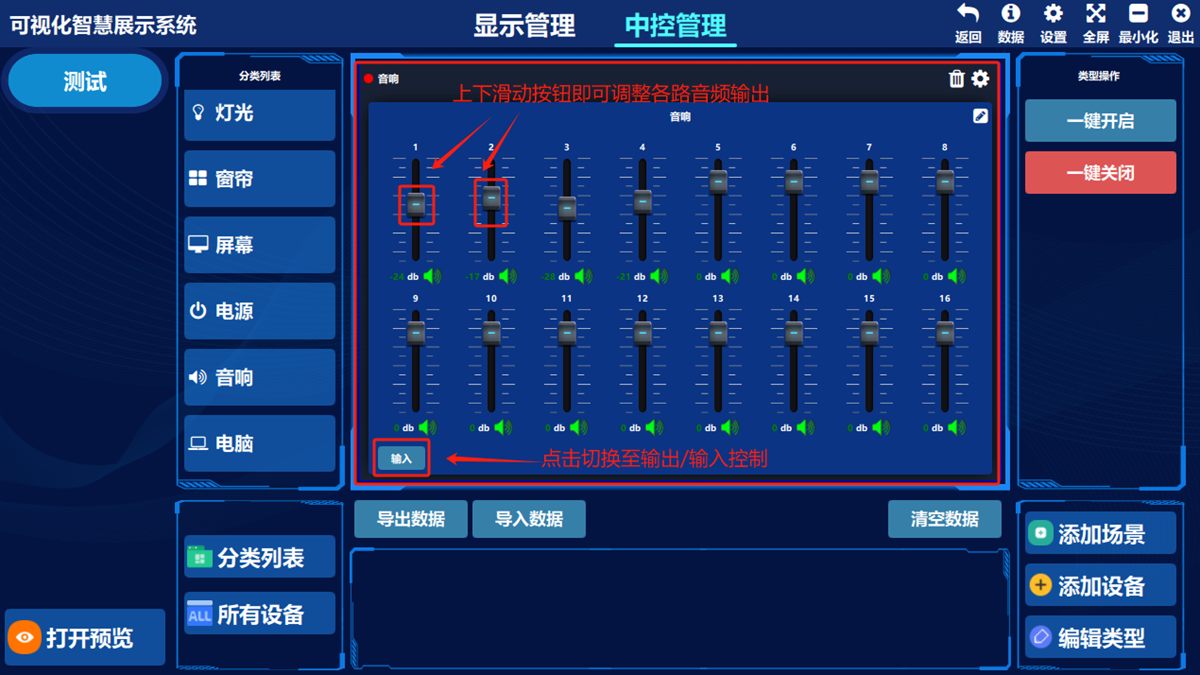
Audio amplifier control
Double-click 音响(Audio) to switch to the control screen
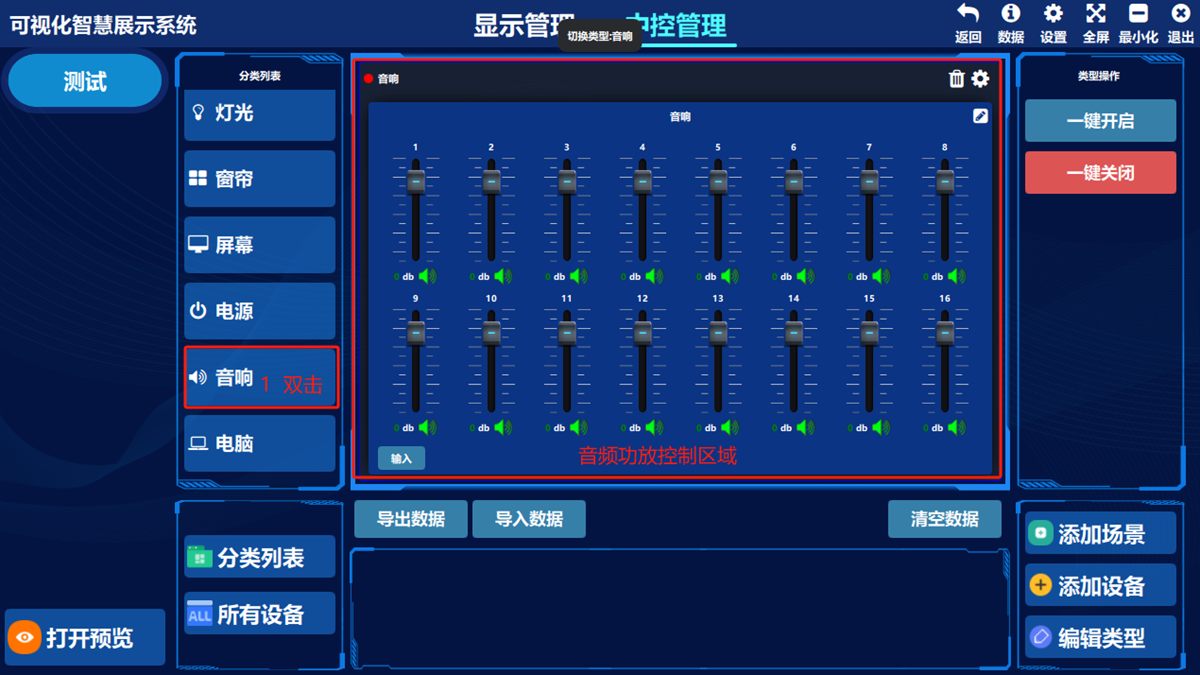
(Illustration) What the screen does:
Slide the button up or down to adjust the audio output of one channel; switch between output and input freely, and adjust it the same way.
Curtain control
Double-click 窗帘(Curtain) to switch to the control screen
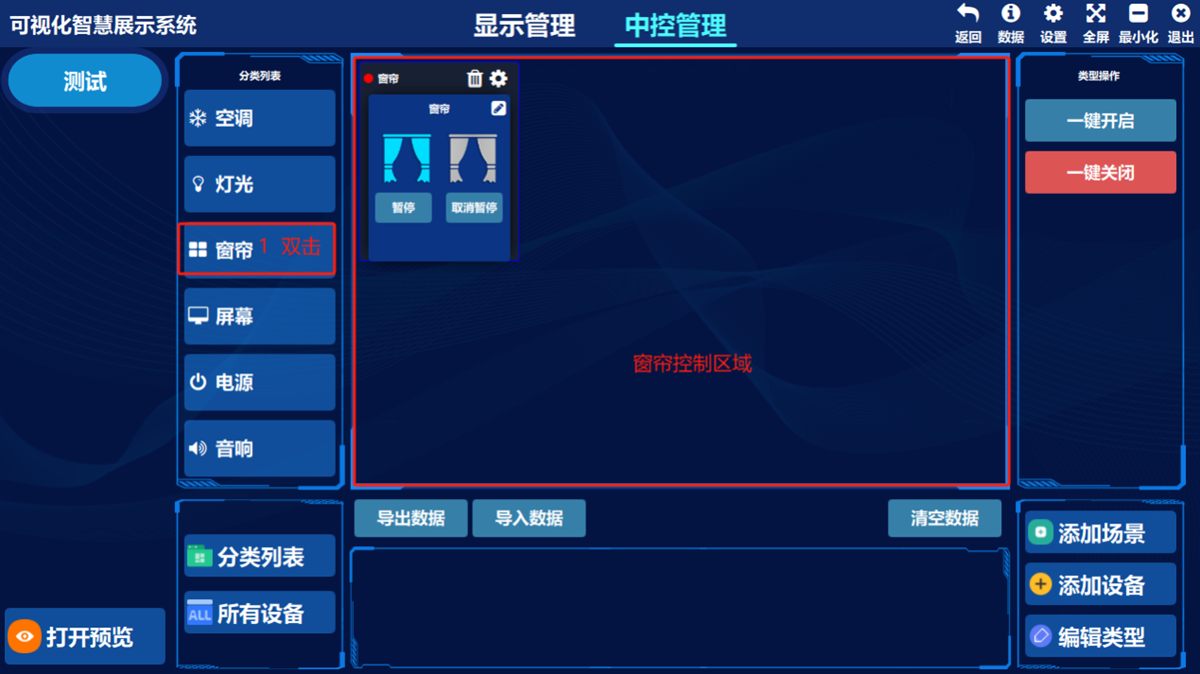
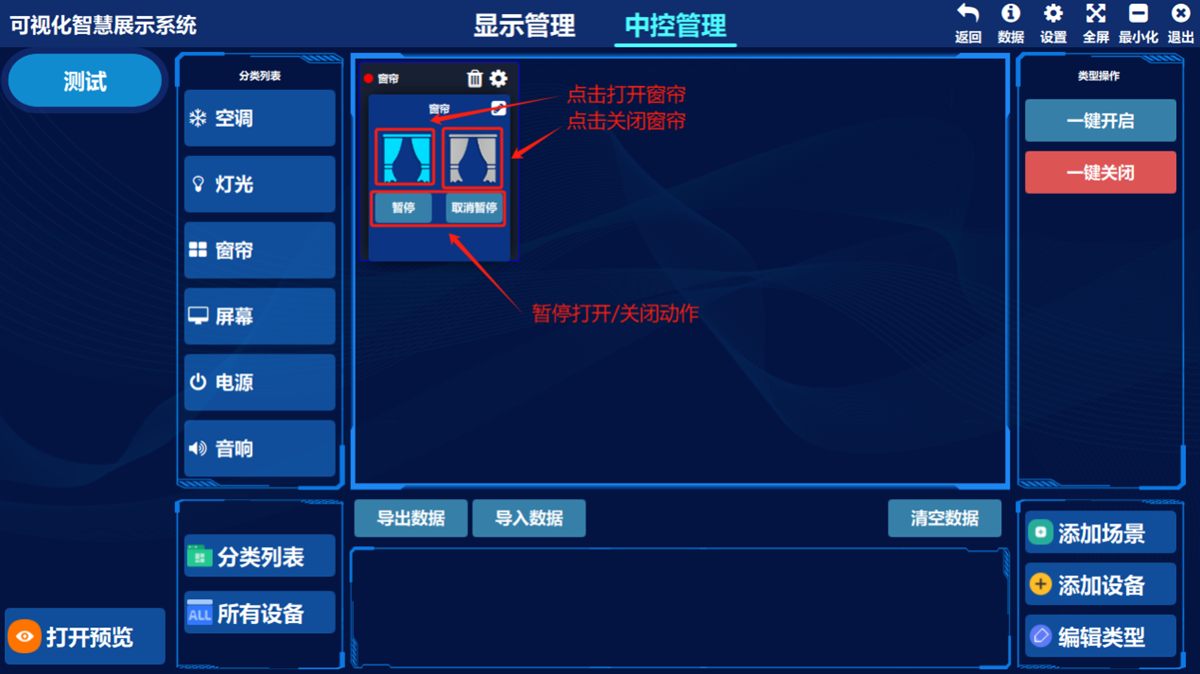
(Illustration) What the screen does:
Open or close the curtain; you can pause it at the right position while it is opening or closing
2. Scene settings (switch several devices on/off together)
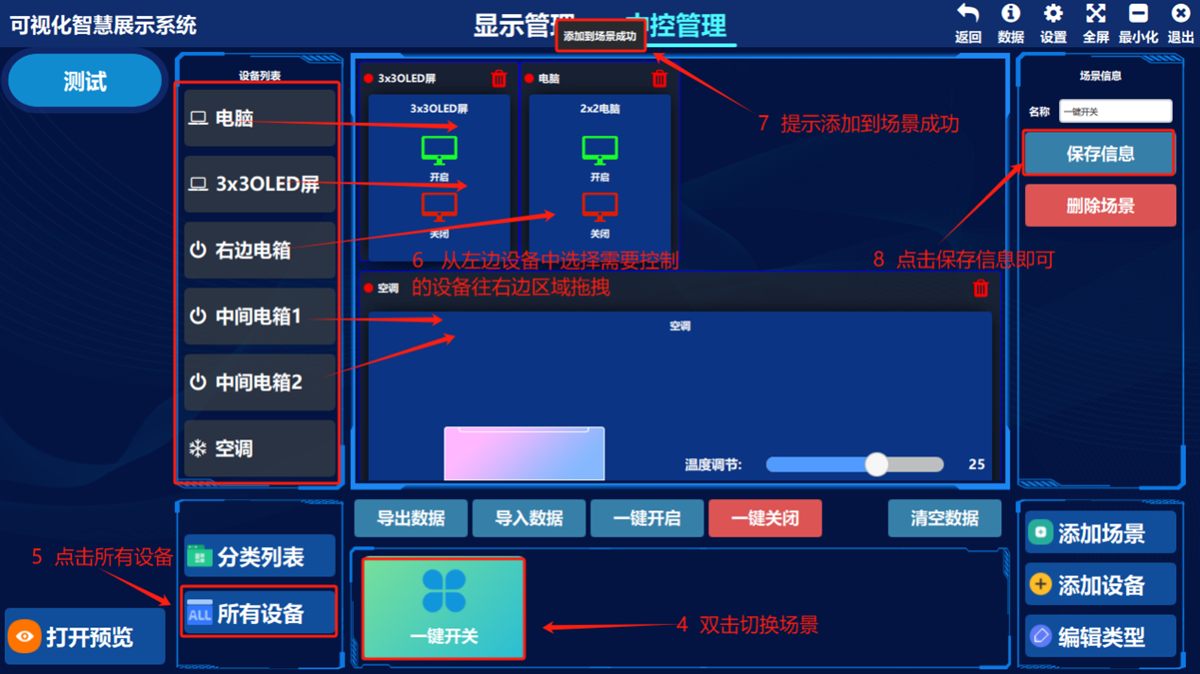
Click 添加场景(Add Scene) in the bottom-right corner, enter a scene name and click 增加(Add)
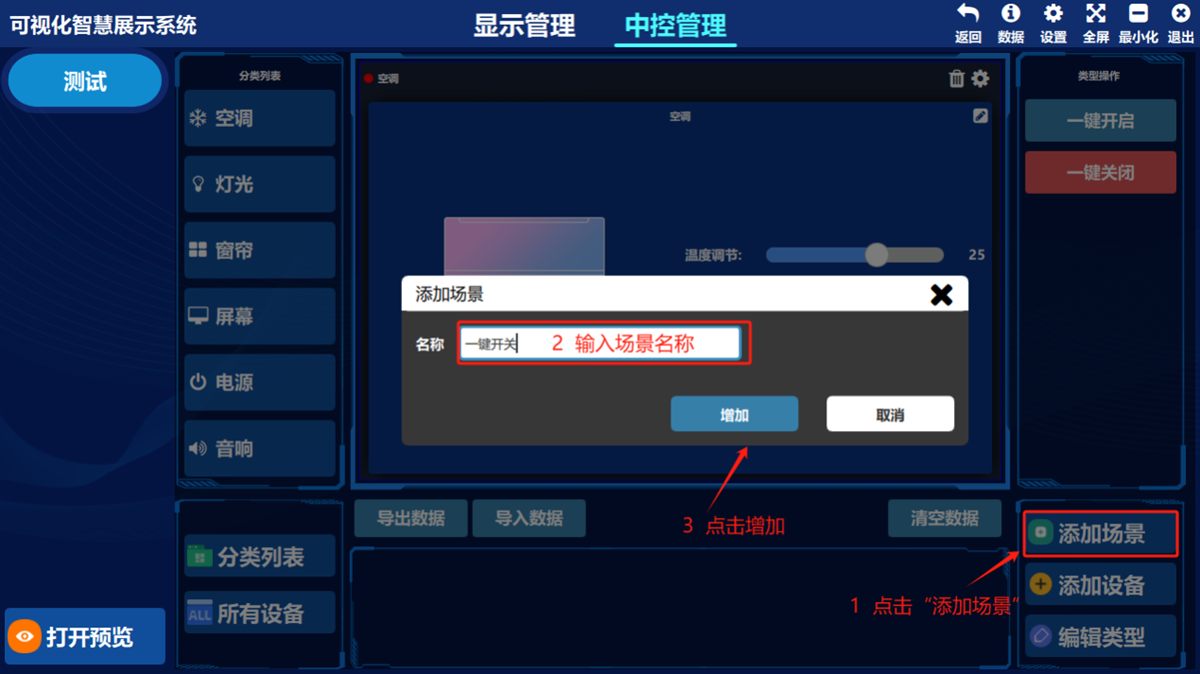
Double-click the scene you created and click 所有设备按钮(All Device Buttons). Select the devices to control in the device list on the left and drag them to the scene area on the right; the prompt 添加到场景成功(Added to the scene successfully) appears. Then click 保存信息(Save Info)
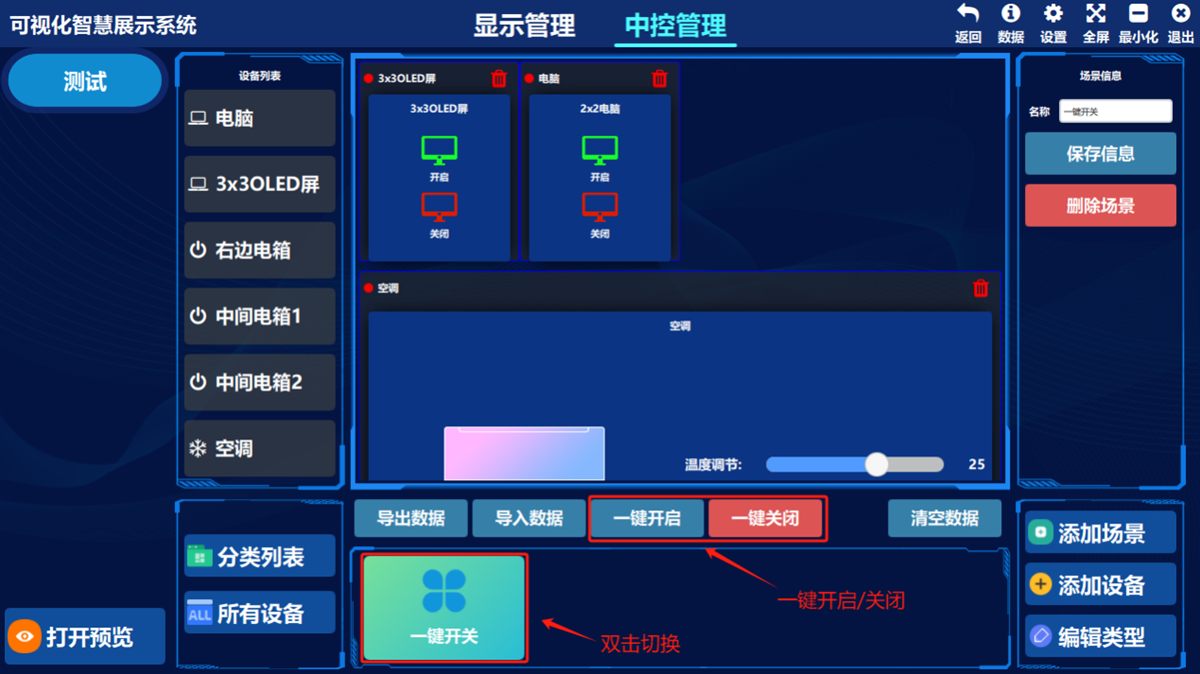
Then double-click the created scene again to preview the added devices, and click 一键开启(Turn All On)/ 一键关闭(Turn All Off) to switch the devices on or off in sequence.
Was this page helpful?A one-line note helps us make these steps more accurate.